
 MikroWizard
Table of Contents
Free Pro
MikroWizard is modular. The workspace mode hides the menus you don’t use, so a team that only does privileged access doesn’t see MikroTik tools, and the other way round. The mode only changes what the interface shows; it does not change data or permissions.
Change the mode #
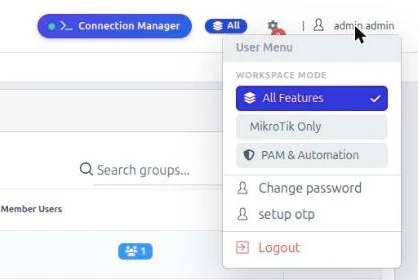
- Click your name in the top right to open the User Menu.
- Under Workspace Mode, choose one option.
| Mode | Shows |
|---|---|
| All Features | Every menu your edition and permissions allow. |
| MikroTik Only | MikroTik tools: network maps, Sync and Cloner, authentication and accounting logs, permissions, customer portals, and so on. Hides the PAM menus. |
| PAM & Automation | Privileged sessions, brands and templates, terminal policies, devices, backups and automation. Hides MikroTik-only menus. |
The pill in the header (for example All) shows the current mode. The mode is saved in your browser, so each browser keeps its own choice.
Menus marked MikroTik only in these docs appear in the MikroTik Only and All Features modes. PAM menus appear in PAM & Automation and All Features.


