
 MikroWizard
Table of Contents
WebBox runs MikroTik’s WinBox 4 for Linux in an isolated sandbox on the Terminal Gateway and streams it to your browser. It is part of MikroWizard Pro 2.1.0, works with MikroTik RouterOS devices, and needs the Terminal Gateway addon v1.3.0 or later.
Before you start #
- Install or update the Terminal Gateway: see Installing Terminal Gateway Addon and Updating Terminal Gateway server.
- Make sure the router is reachable from the gateway.
- MikroTik devices show a WebBox badge in the device list when WebBox is available.
Open a WebBox session #
You can launch WebBox from several places:
- Device list: open the actions menu of a MikroTik row and choose WebBox (WinBox).
- Connection Manager: under MikroTik Routers, click the WebBox icon next to the router.
- Device tree and Network Map: use the WebBox action on the device.
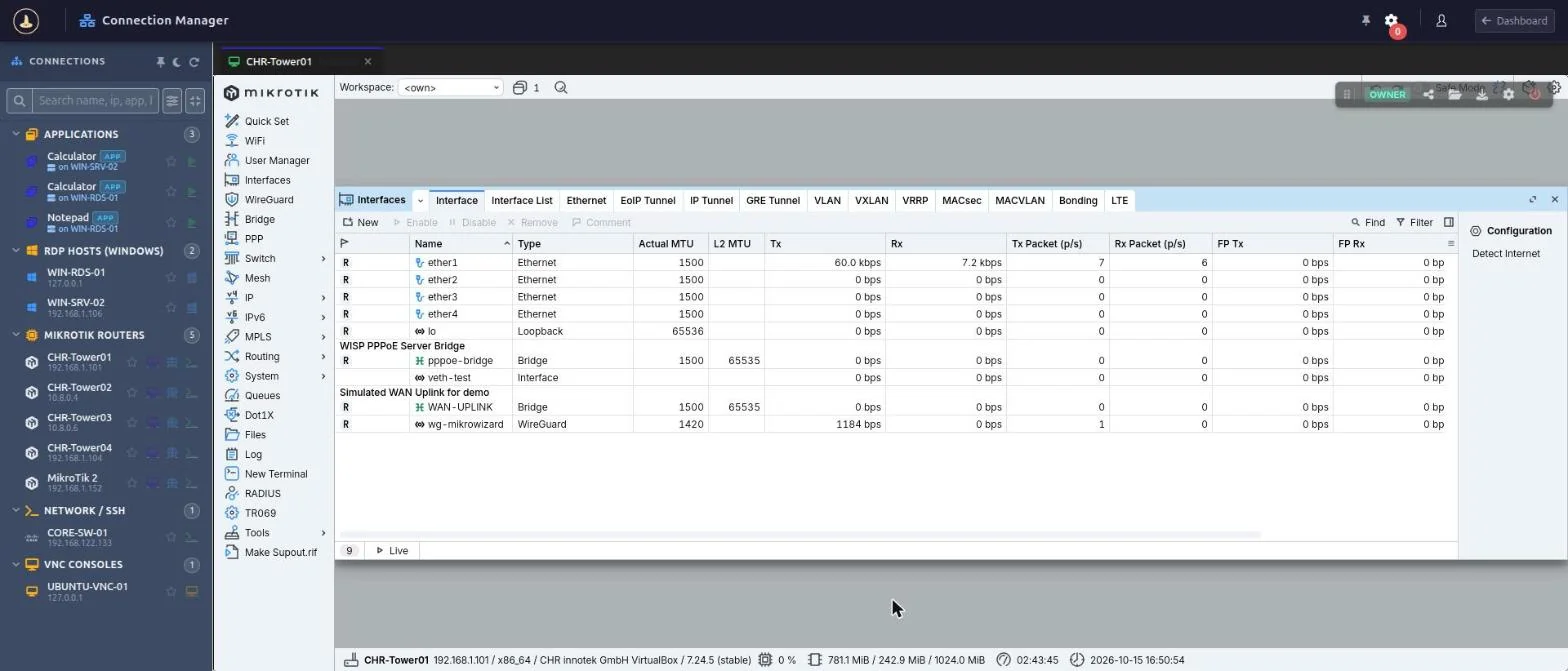
MikroWizard checks that the gateway is available, starts WinBox 4 and opens it in a new tab. Use WinBox as usual inside the tab.
Recordings #
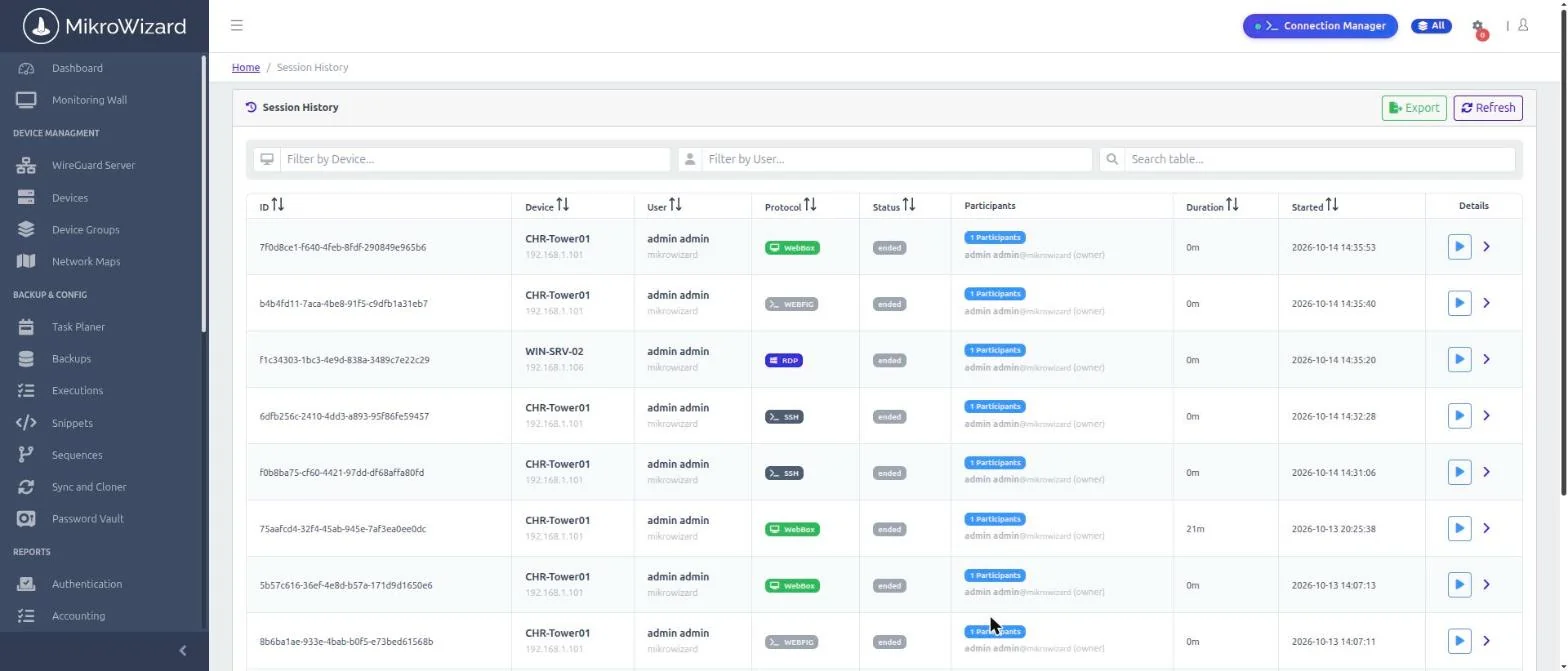
Each WebBox session is recorded as MP4 video with seeking. Find it in Session history, where WebBox sessions carry a WebBox badge, and press play to review it.
Watch or share a live session #
Active WebBox sessions appear in Active sessions. They can be watched or shared like terminal sessions; join and guest links are bound to the signed-in user.
Good to know #
- Each session gets its own isolated, temporary drive.
- WebBox is for MikroTik devices. For Windows or Linux desktops, use RDP and VNC.


