
 MikroWizard
Table of Contents
Pro
What it is #
Email settings connect MikroWizard to your mail server. Email is used for customer activation, password resets, PAM session invites and support ticket notifications.
Example uses
- Send activation links to new customer accounts.
- Let staff reset their own password by email.
Pro Included in MikroWizard Pro. Email powers customer activation, password reset, session invites and ticket notifications.
Settings › Email Settings.
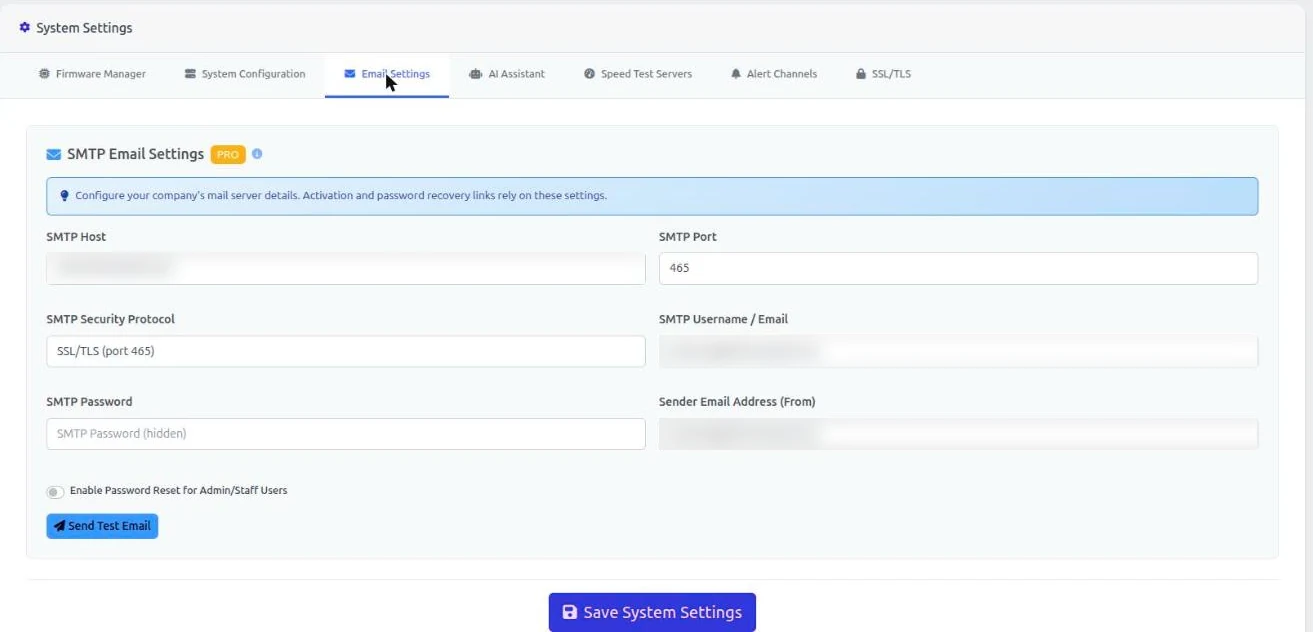
| Field | What to enter |
|---|---|
| SMTP Host | Your mail server, e.g. smtp.gmail.com. |
| SMTP Port | 587 for STARTTLS, 465 for SSL/TLS, or your server’s port. |
| SMTP Security Protocol | None (no encryption), STARTTLS (port 587) or SSL/TLS (port 465). |
| SMTP Username / Email | The mailbox login. |
| SMTP Password | The mailbox password (kept hidden). |
| Sender Email Address (From) | e.g. [email protected]. |
| Enable Password Reset for Admin/Staff Users | Lets admin and staff accounts use Forgot password?. Customers can always reset by email. |
Test it #
- Click Send Test Email.
- Enter a recipient and send.
- Check that the email arrives (and the spam folder).
Click Save System Settings.
Links in activation and password-reset emails use the address MikroWizard was opened with. Create customer accounts while you use MikroWizard by its public address, so the links work for them.
Common problems #
| Problem | Cause and fix |
|---|---|
| The test email fails | Wrong host, port or security. Port 587 goes with STARTTLS, 465 with SSL/TLS. |
| Gmail or Microsoft 365 refuse the login | They need an app password or SMTP AUTH allowed for the mailbox. |
| Emails land in spam | Use a sender address of a domain whose SPF and DKIM allow your mail server. |


