
 MikroWizard
Pro
What it is #
The Monitoring Wall puts every open alert on one screen, next to the devices that raised them. It refreshes itself, so it can stay open on a NOC screen.
Example uses
- Keep the wall open on a second screen during the night shift.
- Mark a one-off warning as fixed once it has been checked.
Monitoring Wall in the menu.
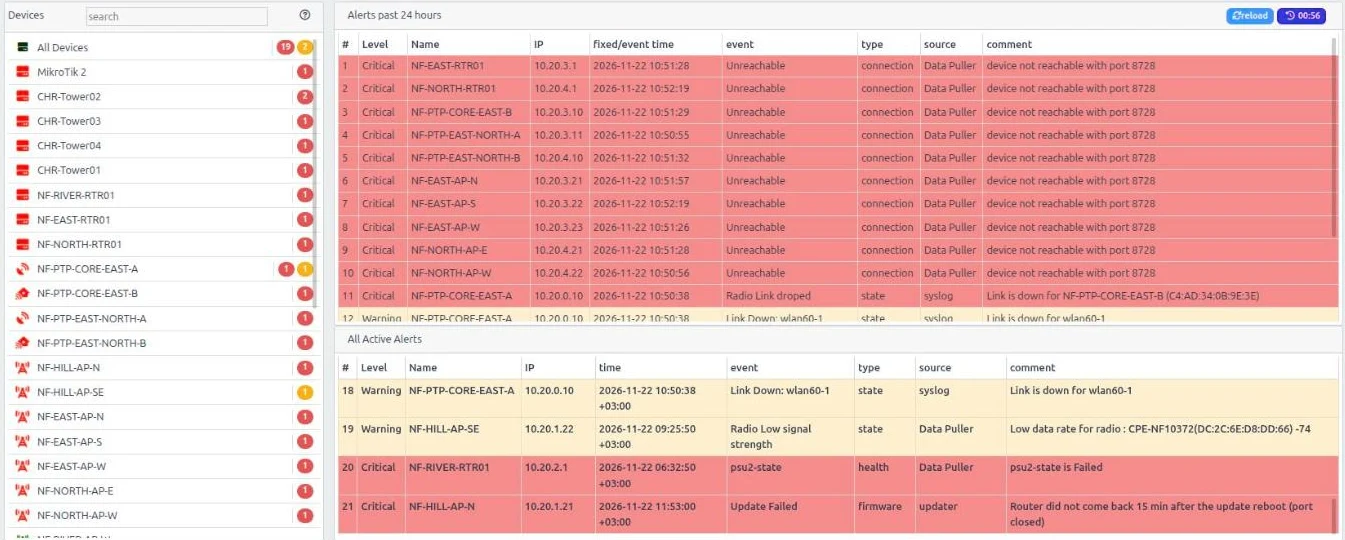
The wall shows events with level Critical, Error or Warning. Info events are left out. It reloads every minute; the counter at the top right shows when the next reload is due, and reload refreshes now.
Devices #
The list on the left shows your devices with a badge per level for their open alerts. A MikroTik device with open alerts has a red, blinking icon. Click a device to show only its alerts; All Devices shows everything again.
Right-click a device for Device Details, Terminal, Device Logs, and for MikroTik devices Web Access, Auth Logs, Account Logs and Backups. Each opens in a new tab.
Alerts past 24 hours #
Every alert of the last 24 hours, open or fixed. Fixed alerts show both times: when the event started and when it was fixed.
All Active Alerts #
The alerts that are still open. Right-click one and choose Mark as Fixed when you have dealt with it, for example a one-off warning that won’t clear itself.
You see only the devices of the groups you have access to.


