
 MikroWizard
Pro MikroTik only
Pro Included in MikroWizard Pro. A self-service portal for your customers (ISP/WISP subscribers or MSP clients) that works on the MikroTik routers you assign to them.
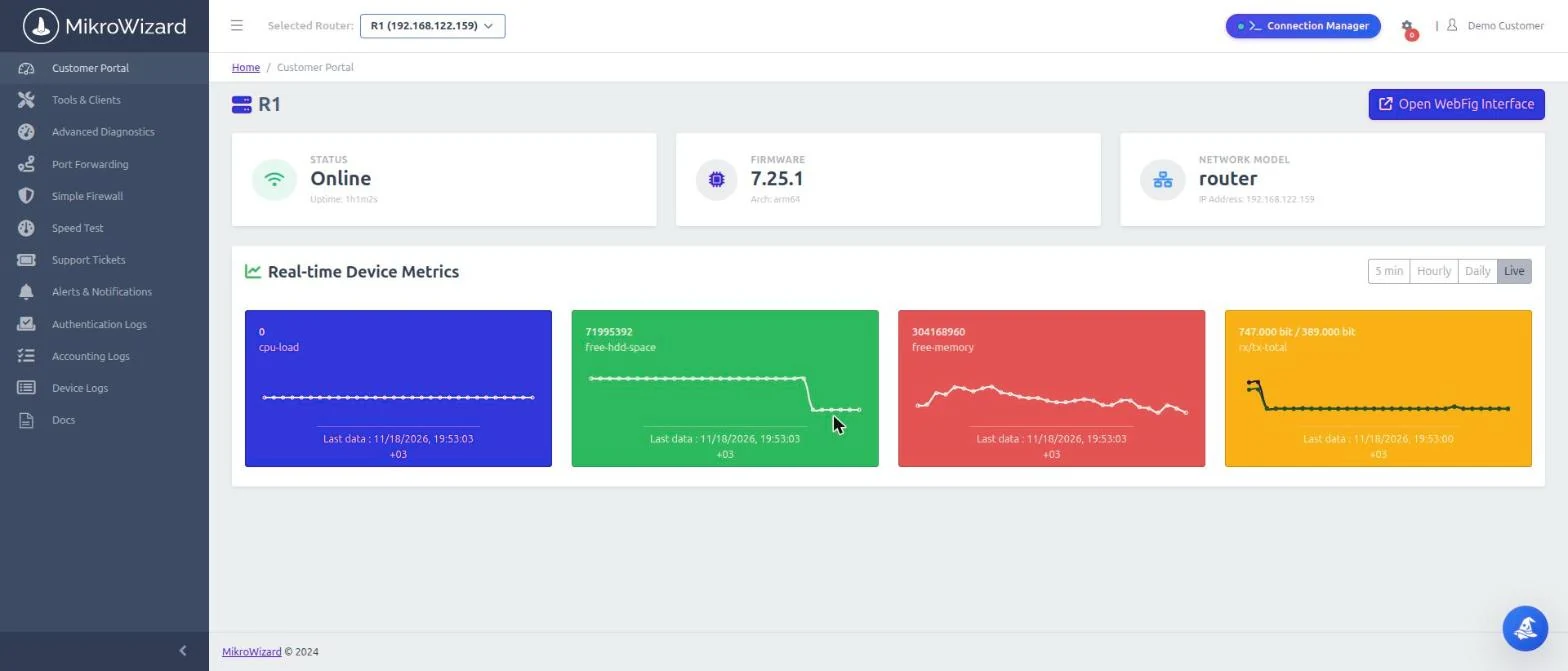
The customer portal lets your customers look after their own MikroTik router without calling support. They sign in to the same MikroWizard address with a Customer account and see only the routers you assigned to them.
What customers can do #
| Page | What it does |
|---|---|
| Customer Portal | Router status, uptime, firmware, model and live metrics. Optional button to open WebFig. |
| Tools & Clients | See connected devices (DHCP leases, wireless clients, ARP, PPP and hotspot sessions), change the Wi-Fi name and password, ping from the router, restart the router. |
| Advanced Diagnostics | One-click check of internet, DNS and interfaces, plus ping and traceroute. |
| Port Forwarding | Create, enable, reorder and delete port forwarding (NAT) rules, or a DMZ. |
| Simple Firewall | One-click filters (malware DNS, family DNS, games, social media, YouTube, Netflix, P2P, VPN, Kids Mode, Night Mode) and a block list for devices. |
| Speed Test | Test from the browser to your MikroWizard server, or from the router to a bandwidth test server, with history. |
| Support Tickets | Open tickets and chat with your staff. |
| Alerts & Notifications | Their own alert rules and channels. |
| Authentication / Accounting / Device Logs | Logs for their routers, if you allow them. |
| AI Virtual Support | A chat assistant that can check their router (needs the AI assistant configured). |
How to set it up #
- Create a customer account, or let customers register themselves.
- Assign routers and permissions.
- Send the customer the MikroWizard address and their login. See Customer sign-in, registration and password reset.
- Handle their requests in Support tickets.
How customer changes reach the router #
When a customer changes something (Wi-Fi, port forwarding, firewall), MikroWizard logs in to the router as that customer, with a one-time password through MikroWizard’s RADIUS. So the router applies the customer’s permission profile, and the change is listed under the customer’s name in the Accounting log when the router sends its logs to MikroWizard. Reading data, such as the client list, uses the device’s stored credential.
That is why the customer’s routers need RADIUS set up (Force RADIUS) and a profile that allows writing for the changes you want to allow.
Example: a WISP #
A subscriber’s camera needs port 8080 open. Instead of calling, the subscriber signs in, opens Port Forwarding, adds the rule and tests it. If it still doesn’t work, they open a ticket; your staff sees the rule in the router and the change in the Accounting log.


