
 MikroWizard
Pro
What it is #
Alert rules send a message to your team’s chat or on-call service when a matching event starts and again when it is resolved.
Example uses
- Page the on-call engineer when a backbone router goes down.
- Post weak customer radio links to a Slack channel once an hour.
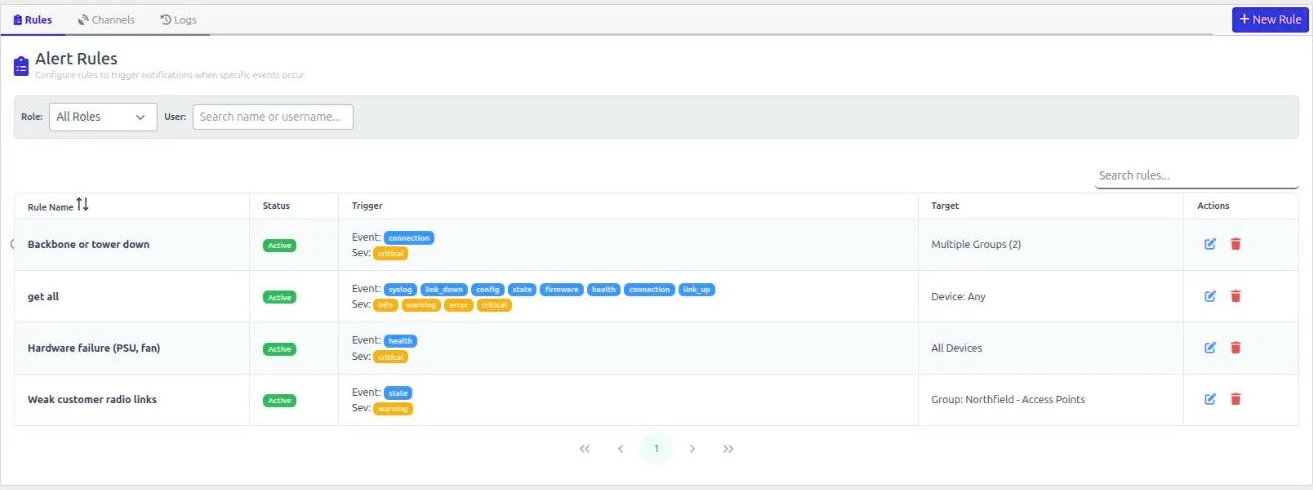
Alerts & Notifications in the menu has three tabs: Rules, Channels and Logs.
Before you start, an administrator enables the notification services in Settings › Alert Channels. Users can only pick services enabled there.
1. Add your channel #
On Channels, click Add Channel, choose a service and fill in your details, for example your Telegram chat ID. Setup Guide explains where to find them; Test sends a test message.

Services: Telegram, Slack, Discord, Pushover, ntfy, Gotify, Mattermost, Microsoft Teams, OpsGenie, PagerDuty and a custom Apprise URL.
Channels belong to each user. A rule sends to the channels of the users chosen as its recipients.
2. Create a rule #
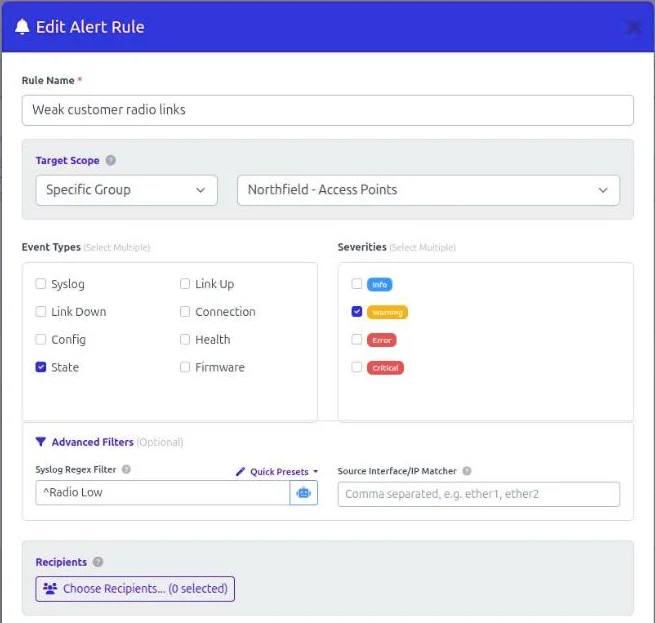
On Rules, click New Rule.
| Field | What it does |
|---|---|
| Rule Name | A name you recognise in the list and the logs. |
| Target Scope | All Devices, a group, several groups, one device or several devices. |
| Event Types | Connection, Config, Health, State, Firmware. Leave all empty for any type. |
| Severities | Info, Warning, Error, Critical. Leave all empty for any level. |
| Syslog Regex Filter | A regular expression matched against the event name (for example ^Radio Low or Unreachable). Not case-sensitive. Quick Presets and the AI button help you write one. |
| Source Interface/IP Matcher | Comma-separated event sources that must match exactly, for example syslog or Data Puller. |
| Recipients | The users who receive the alert on their channels. |
| Message Template | Your own text. Variables: {devname}, {eventType}, {detail}. Empty = the standard message with device, type, level, source, detail and time. |
| Cooldown | Seconds to wait before sending the same rule again for the same event on the same device. |
| Rule Active | Switch the rule on or off. |
When alerts are sent #
- When a matching event is created: the message starts with
[ALERT]. - When that event is fixed:
[RESOLVED]. Resolved messages ignore the cooldown. - Nothing is sent while the alert dispatcher is switched off in Settings › Alert Channels.
Logs #
Logs lists every message sent in the last 30 days: time, rule, event, channel, destination, status and the service’s answer. A test message is listed as Manual Test.
Example rules #
- Backbone or tower down: groups Core and Towers, type Connection, severity Critical, cooldown 300.
- Weak customer radio links: group Access Points, type State, severity Warning, regex
^Radio Low. - Hardware failure: all devices, type Health, severity Critical.


