
 MikroWizard
Table of Contents
Pro MikroTik only
What it is #
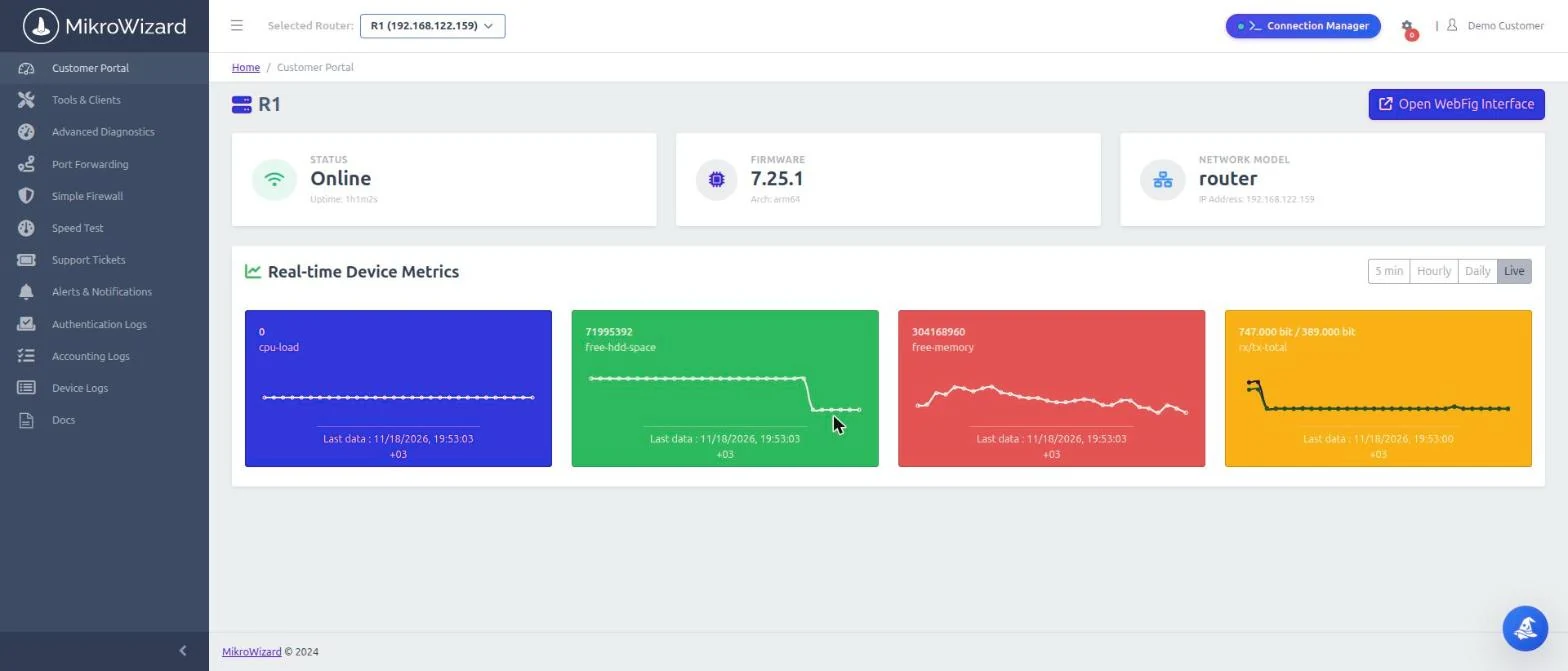
The home page gives the customer a quick picture of their router: online status, uptime, traffic and the most common actions.
Example uses
- A subscriber sees the router is online, so the problem is on their own device.
- A client checks today’s traffic before reporting a slow connection.
Pro Included in MikroWizard Pro. The first page your customers see.
The Customer Portal page shows the router selected at the top:
- Status: online or offline, and uptime.
- Firmware: RouterOS version and architecture.
- Network Model: device type and IP address.
- Real-time Device Metrics: CPU load, free disk, free memory and traffic, for 5 minutes, hourly, daily or live.
- Open WebFig Interface: shown when WebFig access is allowed for this customer.
If the page says No Routers Assigned, no router has been assigned to the account yet: see Assign routers and permissions.


