
 MikroWizard
Pro
What it is #
The WireGuard server connects remote routers and laptops to MikroWizard over an encrypted tunnel. It generates the router script, QR code or config file, and can add the router to Devices automatically.
Example uses
- Manage a router at a site with no public IP.
- Give a field engineer’s laptop access to the management network.
Pro Included in MikroWizard Pro. Bring routers without a public IP, and remote engineers, into MikroWizard over WireGuard.
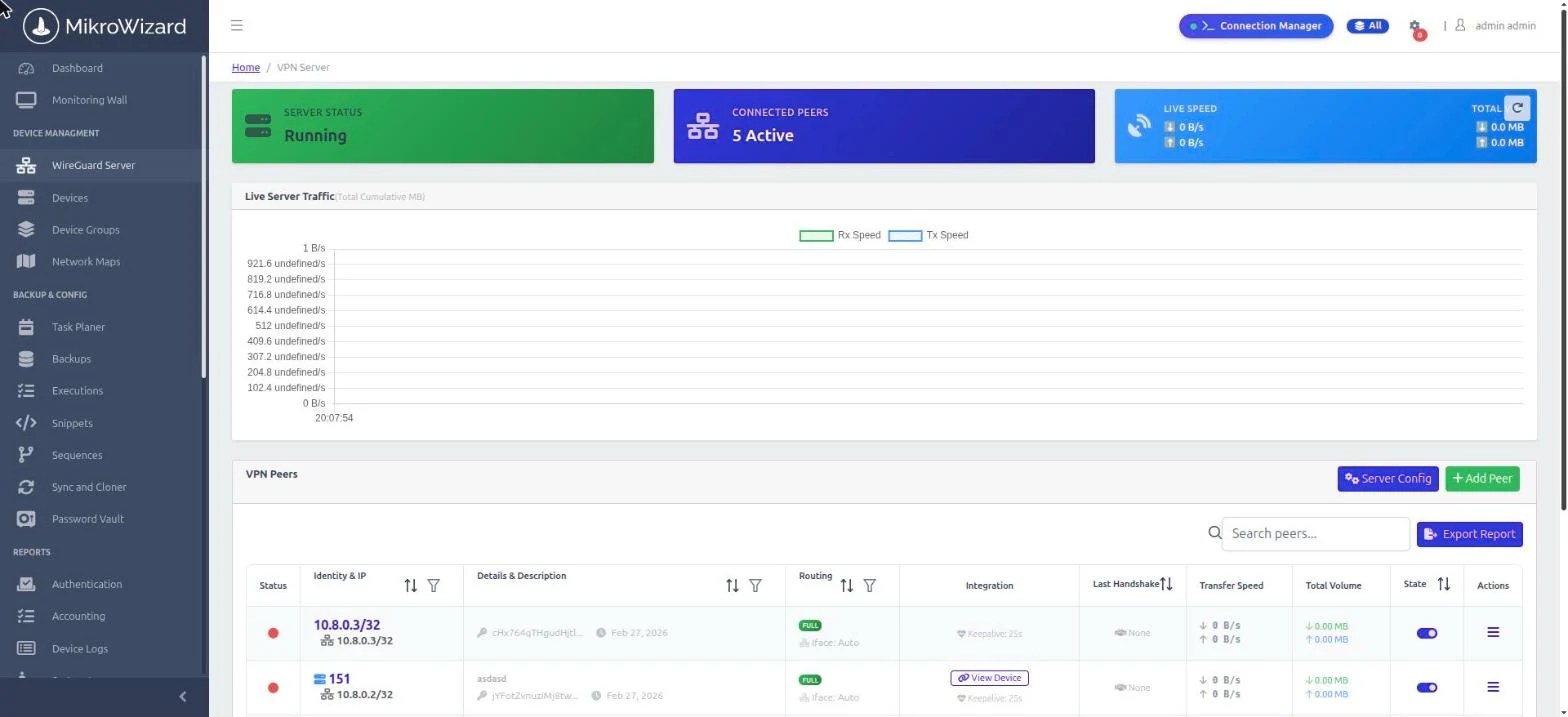
The WireGuard Server page manages the MikroWizard WireGuard addon. Install the addon first: see Install the WireGuard server addon/a>.
Server configuration #
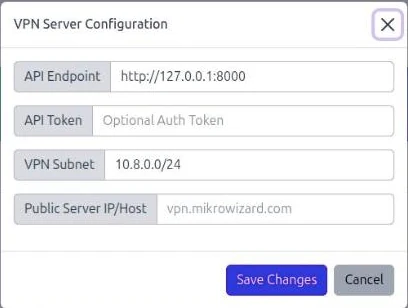
Click Server Config:
| Field | What to enter |
|---|---|
| API Endpoint | Address of the WireGuard addon API. |
| API Token | Optional token if the addon requires one. |
| VPN Subnet | Address range for peers, e.g. 10.8.0.0/24. |
| Public Server IP/Host | The address peers connect to. |
Add a peer #
Click Add Peer and follow the steps:
- General Info: peer name and an optional description.
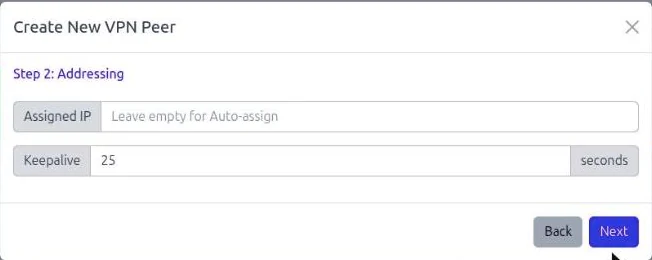
- Addressing: Assigned IP (empty = automatic) and Keepalive (default 25 seconds).
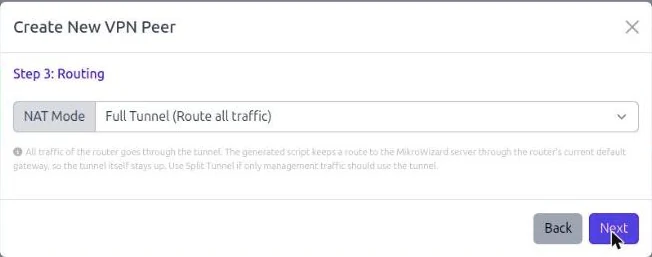
- Routing: Full Tunnel (all traffic through the tunnel; the generated script keeps a route to MikroWizard through the router’s current gateway), Split Tunnel (only the subnets you list) or Off (direct routing).
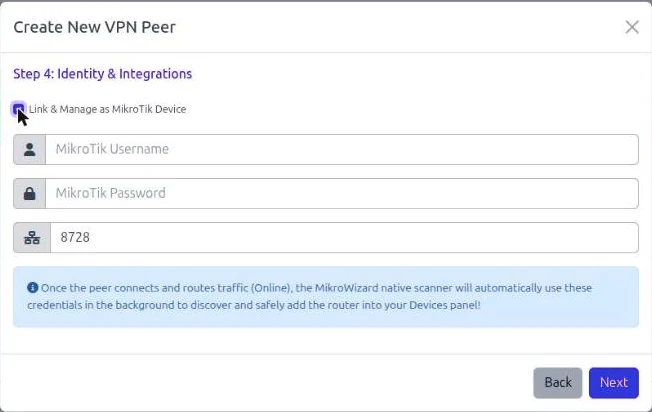
- Identity & Integrations: tick Link & Manage as MikroTik Device and enter the router’s username, password and API port. When the peer comes online, MikroWizard adds the router to Devices automatically.
- Summary: check and create the peer.
Peer actions #
| Action | What it does |
|---|---|
| MikroTik Script | A RouterOS script that sets up the tunnel on the router. Copy it and paste it into the router’s terminal. |
| QR Code | For the WireGuard mobile app (Create from QR code). |
| Download Config | A .conf file for desktop clients. |
| Edit / Delete / Reset Counters | Manage the peer. |
| State switch | Enable or disable the peer. |
The table shows status, routing mode, linked device (View Device), last handshake, speed and total volume. Export Report downloads the peer list.
Example: a router behind CGNAT #
A remote site gets internet through a mobile provider without a public IP.
- Add Peer Site-17, automatic IP, Keepalive 25, routing Off (only the tunnel subnet).
- Tick Link & Manage as MikroTik Device with the router’s API user.
- Copy the MikroTik Script and paste it into the router’s terminal on site.
The router opens the tunnel itself, so no port forwarding is needed. When it connects, it appears in Devices with its tunnel address.
Common problems #
| Problem | Cause and fix |
|---|---|
| The peer never shows a handshake | The router can’t reach the Public Server IP/Host on the WireGuard port. Check the server’s firewall. |
| Internet on the router stops after the script | Full Tunnel sends all traffic through MikroWizard. Use Split Tunnel or Off for routers that only need management. |
| The page can’t reach the addon | Check API Endpoint and API Token in Server Config. |


