
 MikroWizard
Table of Contents
Free Pro
Steps #
- Open
http://<server IP>in your browser. - Sign in with username
mikrowizardand passwordmikrowizard. Note: in version 2.1.2 the installer’s final summary shows the password asadmin; the correct default password ismikrowizard.
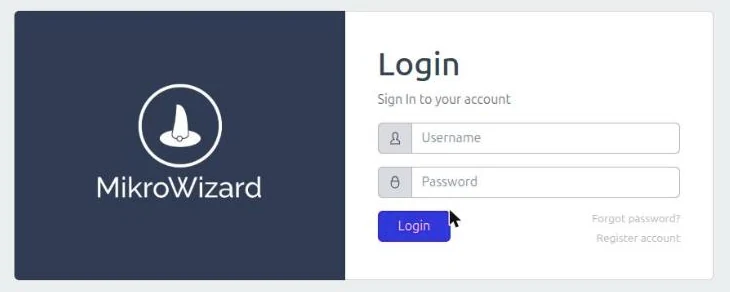
- Click your name in the top right and choose Change password.
- Enter the Current Password, the New Password and New Password confirm, then click submit.
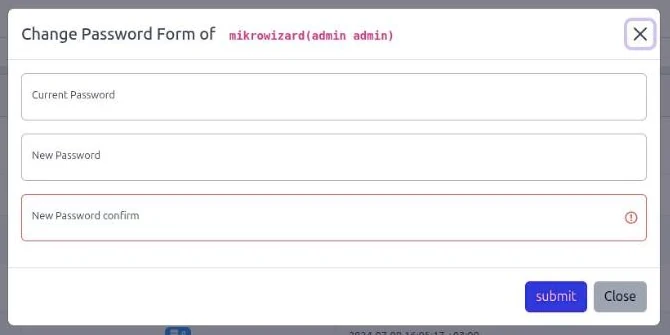
Change the default password before you connect MikroWizard to production devices. Anyone who can reach the login page could otherwise sign in.
Recommended next settings #
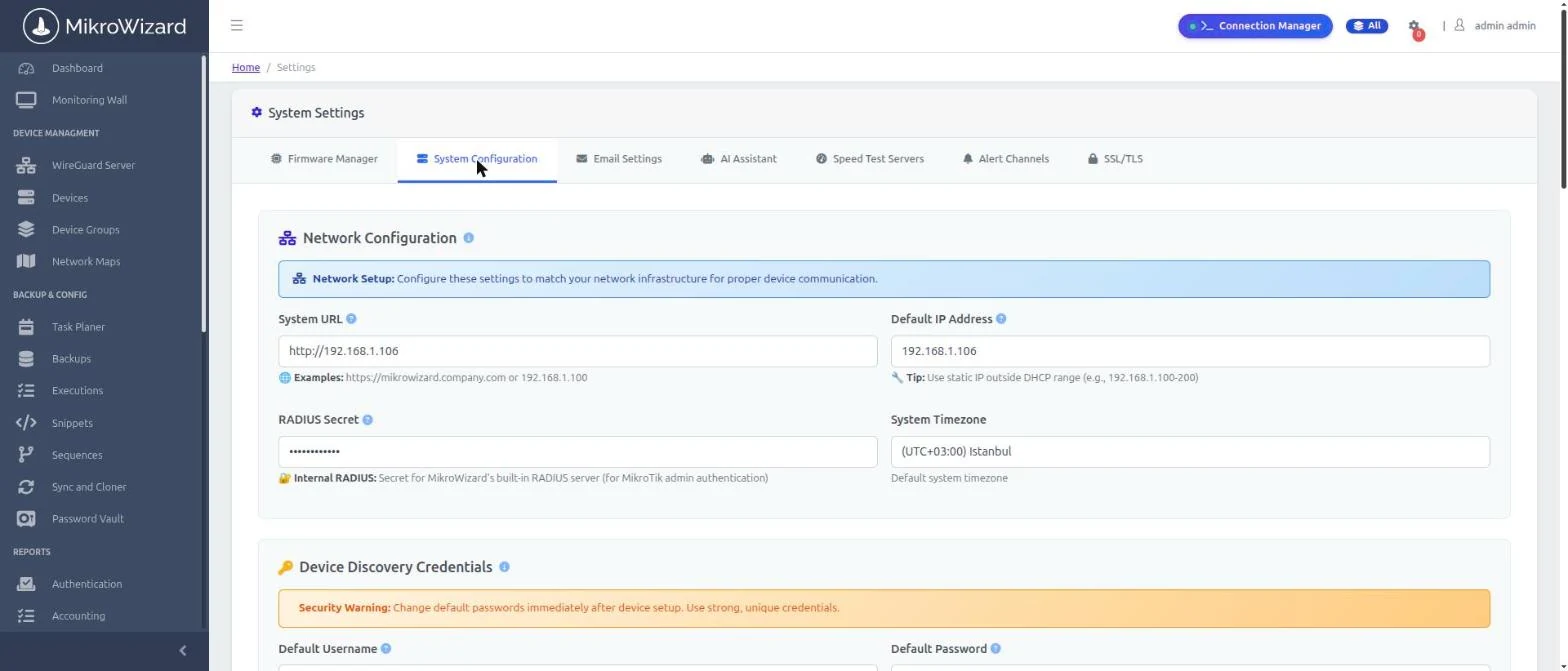
Go to Settings › System Configuration and check:
| Setting | Why |
|---|---|
| System URL | The public address of MikroWizard, e.g. https://mikrowizard.company.com. Used for WebFig session invite links, and as a fallback for firmware downloads and the WireGuard endpoint. |
| Default IP Address | The server IP routers use for RADIUS, syslog and firmware downloads. |
| RADIUS Secret | Shared secret routers use with MikroWizard’s RADIUS server. |
| System Timezone | Used for logs and schedules. |
Pro users can also turn on two-factor sign-in from setup otp in the user menu.
Troubleshooting #
Reset the mikrowizard password #
If nobody knows the mikrowizard password any more, set it back to the default mikrowizard on the server. The command writes the same password hash the installer uses into the PostgreSQL container:
sudo docker exec -i MikroWizard-postgre psql -U <db user> -d MikroWizardDB -c "UPDATE users SET password='\$pbkdf2-sha256\$29000\$yVnr/d9b6917j7G2tlYqRQ\$.8fbnLorUGGt6z8SZK9t7Q5WHrRnmKIYL.RW5IkyZLo' WHERE username='mikrowizard';"Replace <db user> with the database username you chose during installation (see it with sudo grep PYSRV_DATABASE_USER /opt/mikrowizard/server-conf.json). Then sign in with mikrowizard / mikrowizard and change the password straight away.
This resets only the web sign-in password. If two-factor sign-in (TOTP) is turned on for the user, it is still required.


