

MikroWizard Logo MikroWizard Logo MikroWizard
  • Product
    • Zero-Trust Remote Access & PAM
    • Configuration Automation & Diffing
    • NOC Wallboard & Maps
    • WireGuard & MikroSpeed
    • 5-Tier Audit Suite & Logs
    • White-Label Subscriber Portal
  • Solutions
    • For NOC Engineers
    • For ISPs & WISPs
    • For Security Auditors & CISOs
    • For MSPs & Multi-Tenant
  • MikroTik
  • Compare
  • Pricing
  • Resources
    • Engineering Blog
    • Documentation ↗
    • Community Forums ↗
    • Platform FAQ
    • Contact Us
  • Login
  • Register
Star on GitHub Register Device Request Demo
Star GitHub Request Demo Register

Introduction

3
  • MikroWizard Overview
  • Overview of the software
  • Target audience

Getting started

8
  • System requirements
  • Install the MikroWizard docker (recommended)
  • install MikroWizard (manual)
  • Register Serial number
  • Network and Firewall Requirements
  • Install MikroWizard WireGuard docker server
  • Installing MikroSpeed Addon
  • Installing terminal gatway Addon

General

1
  • Understanding MikroWizard Automatic Update & Registration System

Devices, Users & Permissions

4
  • Add New Devices
  • Create and Managing Device Groups
  • Add New User in MikroWizard
  • Manage Permissions in MikroWizard

Tasks, Backups & Snippets

3
  • Managing Snippets
  • Task Planner 
  • Backups

Development

1
  • Development env for backend (mikroman)

Reports

4
  • Authentication
  • Device Logs
  • System Logs
  • Accounting

Firmware Manager

1
  • Firmware Manager
View Categories
  • Home
  • Docs
  • Tasks, Backups & Snippets
  • Managing Snippets

Managing Snippets

Add a New Snippet #

The Snippets section allows you to define reusable code snippets for various tasks.

Select the “Snippets” option from the main menu.

Click on the “+” button to open the “Add Snippet” page.
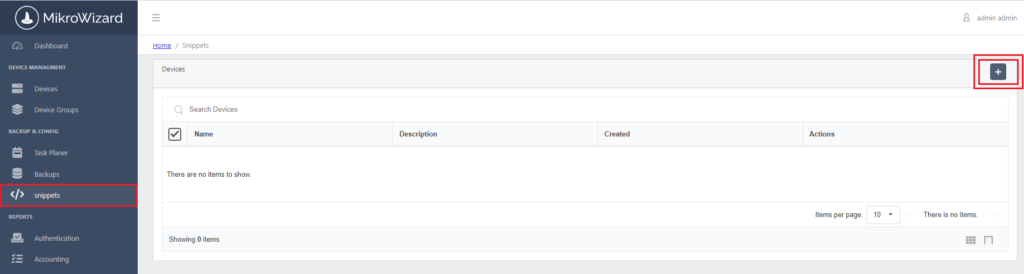
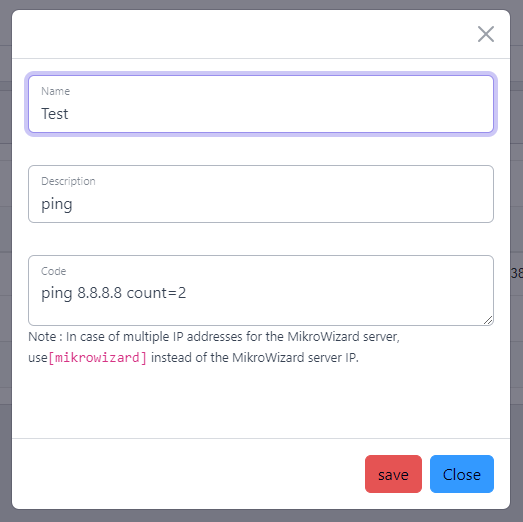
Fill in the Snippet Details:

  • Name: Provide a descriptive name for the snippet.
  • Description: Optionally, add details about the snippet’s usage or purpose.
  • Code: Enter the code related to the snippet.

Save the Snippet: After filling out the information, click the “Save” button to store the snippet
Viewing and Managing Snippets #

After saving, you will see a list of all snippets that have been created and once you have added snippets, you can view and manage them

  • Options Available for Each Snippet
    • Edit: Click the edit icon next to a snippet to modify its name, description, or code.
    • Data: you can monitor the execution details of your snippets:
      1. View Execution History: After executing snippets, you can view the time each code was executed, complete with additional details.
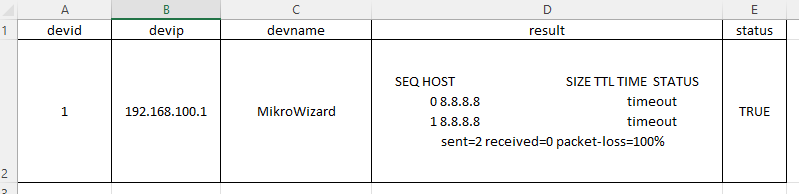
      2. Download Execution Data: You can download the execution logs in Excel format for further analysis. This file typically includes:
        • Device ID: The unique identifier for the device on which the snippet was executed.
        • IP Address: The IP address of the device.
        • Success Status: Indicates whether the execution was successful or not.
        • Result: You can see the output of the executed code.
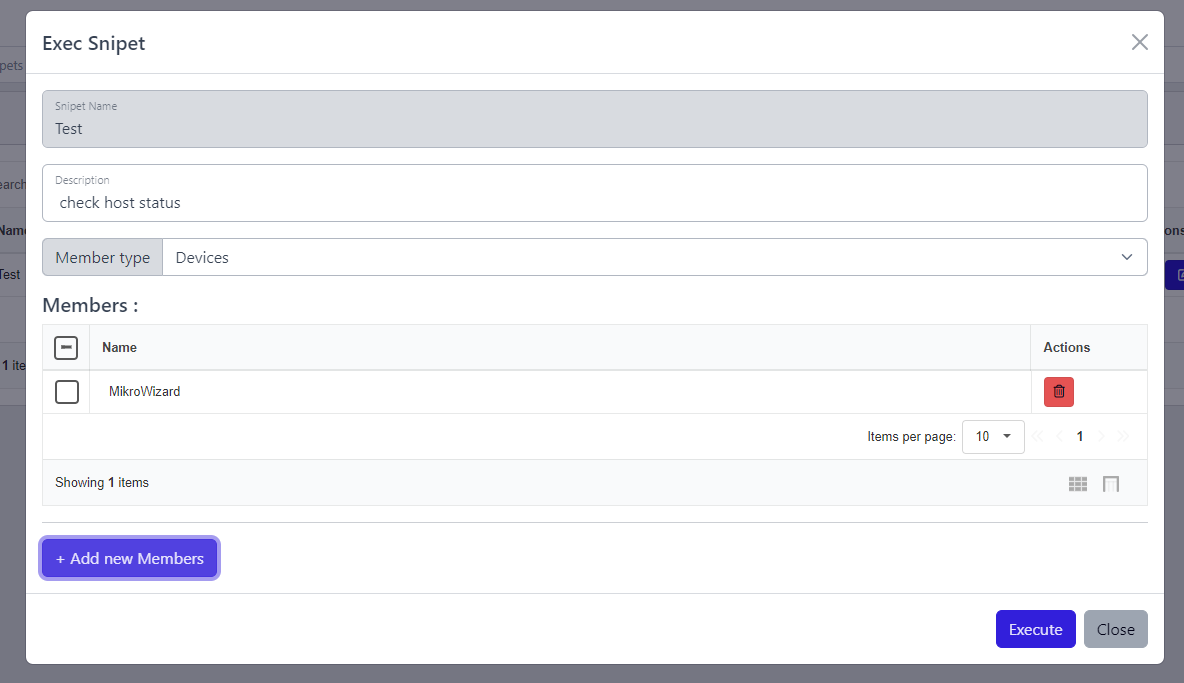
    • Execute: To run the snippet:
      1. Click the “Execute” button next to the desired snippet.
      2. Select Devices: In the pop-up window, choose the group of devices on which you want to execute the snippet.
      3. Confirm Execution: Click the “Execute” button to run the code across the selected devices simultaneously.
    • Delete: Click the delete icon to permanently remove the snippet from the list.
Feedback on Execution: After executing a snippet, check Data section to ensure it ran successfully on all selected devices.
Testing and Validation: Before running snippets on production devices, consider testing them in a controlled environment to prevent unintended changes.

Updated on August 8, 2024

What are your Feelings

  • Happy
  • Normal
  • Sad

Share This Article :

  • Facebook
  • X
  • LinkedIn
  • Pinterest
BackupsTask Planner 
Table of Contents
  • Add a New Snippet
  • Viewing and Managing Snippets
MikroWizard Logo MikroWizard Logo MikroWizard

Enterprise Zero-Trust Network PAM & Fleet Automation platform engineered specifically for MikroTik RouterOS networks.

v2.0.0 Release Production Ready

Platform & PAM

  • Zero-Trust Remote Access & PAM
  • Config Automation & Diffing
  • NOC Wallboard & Maps
  • WireGuard & MikroSpeed
  • 5-Tier Audit Suite
  • Subscriber Portal

Solutions

  • For NOC Engineers
  • For ISPs & WISPs
  • For Security Auditors
  • For MSPs & Multi-Tenant
  • MikroTik RouterOS Spotlight
  • Platform Comparison

Resources

  • Pricing Calculator
  • Engineering Blog
  • Documentation ↗
  • Community Forums ↗
  • Platform FAQ
  • Contact Us

© 2026 MikroWizard. All rights reserved. Built for MikroTik RouterOS v6 & v7 fleets.

Privacy Policy EULA Sales Agreement Return Policy

Product Screenshot Inspection

Screenshot Zoom Preview