
 MikroWizard
Table of Contents
Free Pro MikroTik only
What it is #
MikroWizard updates RouterOS on one router or hundreds, with checks before and after, from your repository or from MikroTik.
Example uses
- Update all branch routers to the same stable version over a weekend.
- Move old v6 routers to v7 step by step (Pro).
Before you start #
- Packages in the firmware repository for local delivery, or internet access on the routers for router-native delivery.
- Permission: Devices Full.
- Read Firmware Manager for what happens during an update.
Start an update #
- Go to Devices. Updates Available filters routers with a newer version.
- Tick the routers and click Update Firmware (or use the row menu for one router).
- Choose the Delivery Method:
- Local Repository (Offline): packages are pushed from MikroWizard; the router needs no internet access.
- Router Native (/system package update): the router downloads from MikroTik servers itself.
- For local delivery, pick the Target Version (for example Latest in Repository) and the Update Scope:
- Full Update (RouterOS + Packages): also updates every extra package installed.
- Firmware Only (RouterOS OS Only): only RouterOS. Extra packages stay old and RouterOS disables them after the reboot.
- Optionally Select Packages to install more packages.
- Options: Auto-upgrade RouterBOOT on reboot, PtP Station-First Safe Ordering (Pro).
- Click Yes, Update Firmware.
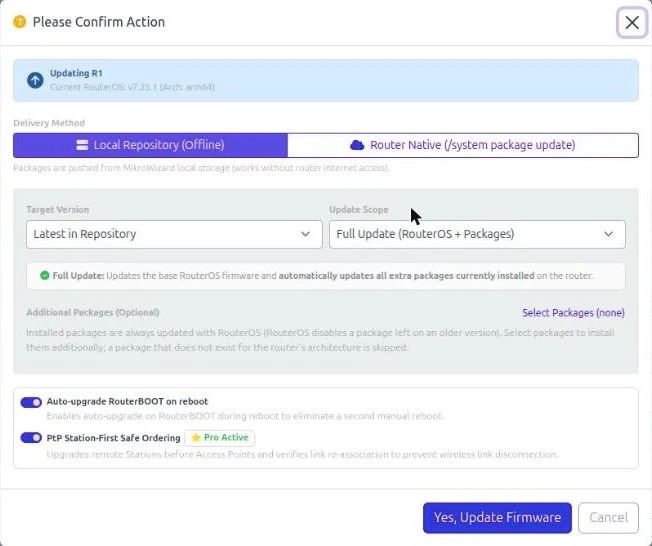
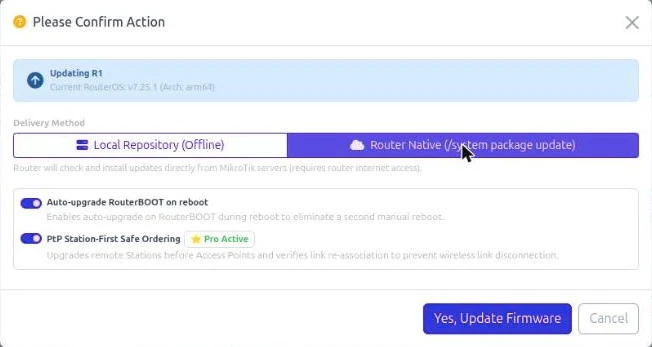
You can also update all routers of a group from Device Groups › ≡ › Update Firmware.
Scheduled updates #
Create a Task Planer task of type Firmware Update: choose the strategy, release channel (Stable, Long-term, Testing, Development), versions for v7 and v6, the scope and the options. Schedule it at night, in UTC.
Example: a careful fleet update #
- Download the target version into the repository.
- Update two test routers of each model; check them the next day.
- Update one site; for wireless links turn on PtP Station-First Safe Ordering (Pro), so stations are updated before their access points and links come back.
- Update the rest with a night-time task on the groups.
If an update fails #
The router shows a failed state and a Firmware event explains why. Fix the cause (space, connectivity) and click Clear Failed to retry. Check Firmware refreshes what each router reports. MikroWizard retries failed updates by itself up to the configured number of retries.
Update a few routers first. Wireless links: use PtP station-first ordering (Pro) or update stations before access points yourself.


