
 MikroWizard
Pro MikroTik only
What it is #
An IP restriction lets a user log in to routers only from the addresses or networks you list.
Example uses
- Contractors may only log in to routers from your office network.
- Admins may only reach routers from the management VLAN.
Pro Included in MikroWizard Pro. Limit where each user can log in to routers from.
Before you start #
- Edition: Pro. It applies to MikroTik router logins through MikroWizard’s RADIUS.
- Know the addresses or networks your team connects from, for example the office VPN range.
Set it up #
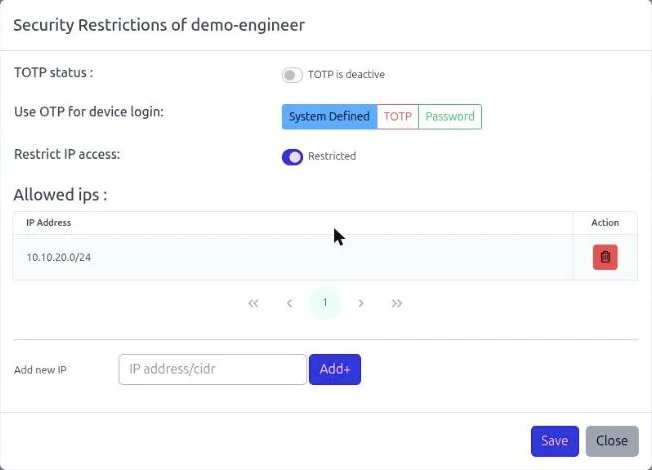
- Go to Users Management and click the Security Restrictions (fingerprint) button of the user.
- Turn on Restrict IP access.
- Enter an address or network under Add new IP, for example
10.10.20.0/24, and click Add+. Repeat as needed. - Click Save.
What it does #
When the user logs in to a MikroTik router through MikroWizard’s RADIUS, the address they connect from must be in the list. Otherwise the login is refused and the Authentication log shows IP not allowed. Sessions opened through the MikroWizard web terminal are checked against the user’s own address.
The restriction applies to router logins. Signing in to the MikroWizard web interface is not limited by this list.
Example #
A contractor may manage routers only through the company VPN, which gives addresses from 10.10.20.0/24. Add that network to the contractor’s list. If they try WinBox from home without VPN, the router refuses the login and the Authentication log shows IP not allowed.
Common problems #
| Problem | Cause and fix |
|---|---|
| The user can’t log in from the office | The address the router sees is different (NAT). Look at the address in the Authentication log and add it. |
| The user is locked out of all routers | The list doesn’t contain any address they use. Turn Restrict IP access off or add the address. |


