
 MikroWizard
Table of Contents
Free Pro
What it is #
The device list is where you find devices and act on many at once: firmware checks and updates, bulk edits, reboots and exports.
Example uses
- Show only routers with updates available and update them together.
- Change the API port on 50 routers in one bulk edit.
Find devices #
- Tabs: All Devices, MikroTik, Other Brands.
- Updates Available shows MikroTik routers with a newer RouterOS; Clear Filter resets the view.
- Filter by Group and the search box (name, IP, MAC, model).
- Column filters and sorting on name, brand and IP.
Act on selected devices #
Tick one or more rows. A toolbar appears above the list:
| Button | What it does |
|---|---|
| Check Firmware | Checks for RouterOS updates (MikroTik). |
| Update Firmware | Starts a RouterOS update (MikroTik). See Firmware Manager. |
| Upgrade RouterBOOT | Upgrades the bootloader (MikroTik). |
| Clear Failed | Clears a failed firmware state so the router can be retried. |
| Bulk Edit | Changes connection settings on several MikroTik routers. |
| Reboot | Reboots the selected routers after a confirmation. |
| Delete | Removes the devices from MikroWizard (not from the network). |
| Deselect All | Clears the selection. |
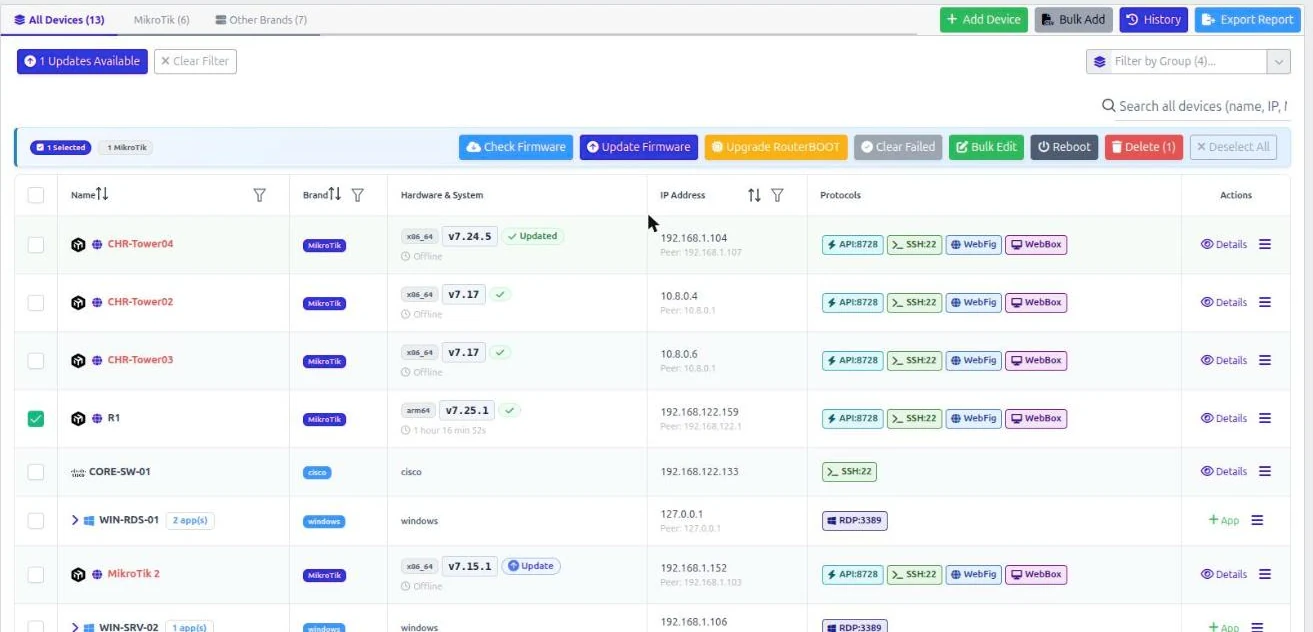
The same actions are in MikroTik Batch Actions at the bottom of the list. For non-MikroTik devices only Delete is available.

Bulk Edit #
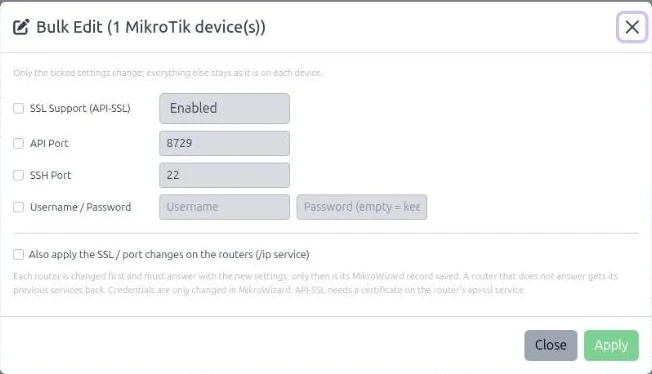
Tick the settings to change; everything else stays as it is on each device:
- SSL Support (API-SSL) enabled or disabled, API Port, SSH Port, Username / Password.
- Also apply the SSL / port changes on the routers (/ip service): MikroWizard changes each router first and saves its record only when the router answers with the new settings. A router that doesn’t answer gets its previous services back. Credentials are only changed in MikroWizard.
Row actions #
The ≡ button on each row has the device actions: terminal access (SSH, WebFig, WebBox, RDP, VNC; Pro), Edit Device, Check / Update / Upgrade Firmware and Clear Failed State. Details opens the device page.
History and export #
- History lists IP scans and bulk adds with results; download each as CSV.
- Export Report downloads the device list with the columns you choose (ID, name, IP, MAC, CPU architecture, current firmware, uptime, status, model, group).
Examples #
- Every router that needs an update: click Updates Available, tick all rows, then Update Firmware.
- Move 50 routers to API-SSL: tick them, Bulk Edit, enable SSL Support, port 8729, and tick Also apply … on the routers. Routers that don’t answer keep their old settings.
- Inventory for the finance team: Export Report with name, model, current firmware and group.


