

MikroWizard Logo MikroWizard Logo MikroWizard
  • Product
    • Zero-Trust Remote Access & PAM
    • Configuration Automation & Diffing
    • NOC Wallboard & Maps
    • WireGuard & MikroSpeed
    • 5-Tier Audit Suite & Logs
    • White-Label Subscriber Portal
  • Solutions
    • For NOC Engineers
    • For ISPs & WISPs
    • For Security Auditors & CISOs
    • For MSPs & Multi-Tenant
  • MikroTik
  • Compare
  • Pricing
  • Resources
    • Engineering Blog
    • Documentation ↗
    • Community Forums ↗
    • Platform FAQ
    • Contact Us
  • Login
  • Register
Star on GitHub Register Device Request Demo
Star GitHub Request Demo Register

Introduction

3
  • MikroWizard Overview
  • Overview of the software
  • Target audience

Getting started

8
  • System requirements
  • Install the MikroWizard docker (recommended)
  • install MikroWizard (manual)
  • Register Serial number
  • Network and Firewall Requirements
  • Install MikroWizard WireGuard docker server
  • Installing MikroSpeed Addon
  • Installing terminal gatway Addon

General

1
  • Understanding MikroWizard Automatic Update & Registration System

Devices, Users & Permissions

4
  • Add New Devices
  • Create and Managing Device Groups
  • Add New User in MikroWizard
  • Manage Permissions in MikroWizard

Tasks, Backups & Snippets

3
  • Managing Snippets
  • Task Planner 
  • Backups

Development

1
  • Development env for backend (mikroman)

Reports

4
  • Authentication
  • Device Logs
  • System Logs
  • Accounting

Firmware Manager

1
  • Firmware Manager
View Categories
  • Home
  • Docs
  • Devices, Users & Permissions
  • Manage Permissions in MikroWizard

Manage Permissions in MikroWizard

Select the “Permissions” option from the main menu on the left side. #

In the Permissions page, you will see a list of existing permissions . To add a new permission rule , click on the “+” button.
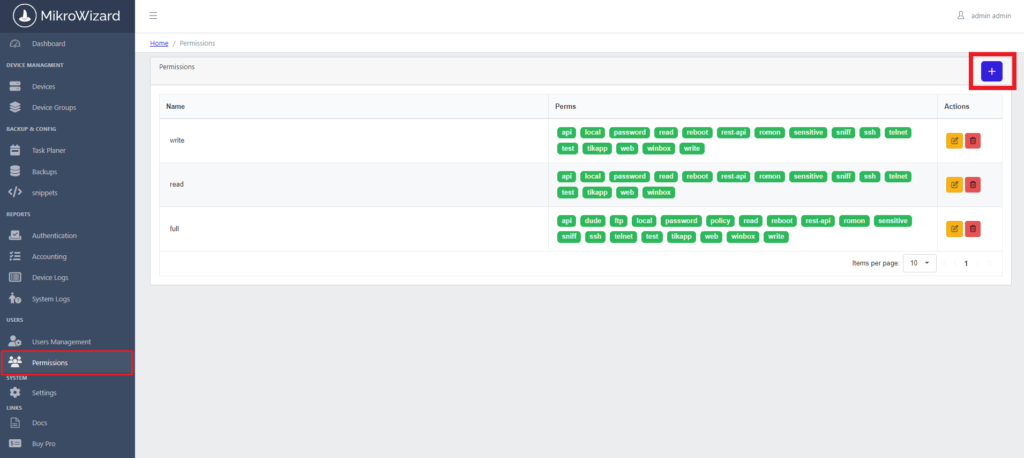
You can not delete or modify default permissions and there is a restriction
Ensure that you only grant access to features that are necessary for user roles to maintain security practices.
Define New Permission Rule : #
  • In the new window, you can enter the following information:
  • Permission Name: Provide a clear and descriptive name for the new permission.
  • Select the specific permission: Select the specific permission that you want to adjust
  •  you will see a list of various access options, which may include API, FTP, password, winbox and etc.
  • For each feature, you can activate or deactivate access by checking or unchecking the respective checkbox.
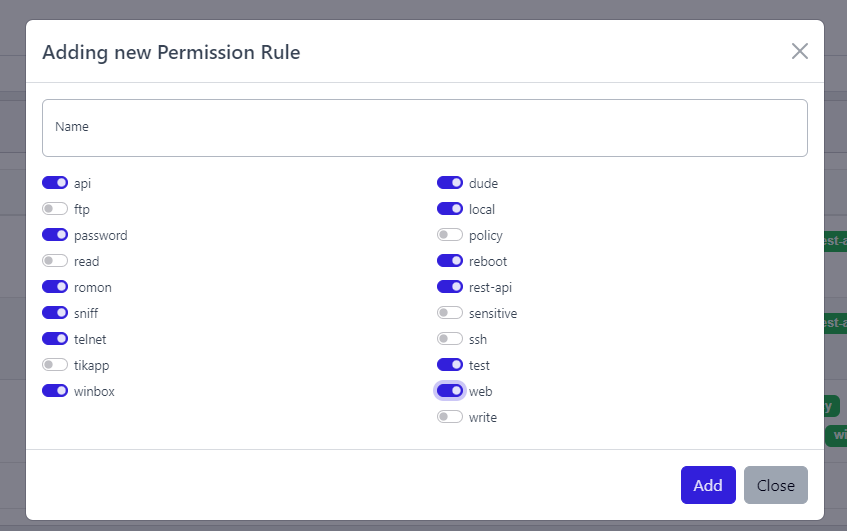
After configuring the desired access rights, click the “Add” button to apply the changes.

User Needs Assessment: Before assigning specific access rights, consider each user’s needs and responsibilities to ensure they have the appropriate level of access without overexposure.
Security Review: Regularly review active permissions to ensure that no unnecessary access is granted, especially for sensitive features like API and password management.

Updated on August 7, 2024

What are your Feelings

  • Happy
  • Normal
  • Sad

Share This Article :

  • Facebook
  • X
  • LinkedIn
  • Pinterest
Add New User in MikroWizardAdd New Devices
Table of Contents
  • Select the “Permissions” option from the main menu on the left side.
  • Define New Permission Rule :
MikroWizard Logo MikroWizard Logo MikroWizard

Enterprise Zero-Trust Network PAM & Fleet Automation platform engineered specifically for MikroTik RouterOS networks.

v2.0.0 Release Production Ready

Platform & PAM

  • Zero-Trust Remote Access & PAM
  • Config Automation & Diffing
  • NOC Wallboard & Maps
  • WireGuard & MikroSpeed
  • 5-Tier Audit Suite
  • Subscriber Portal

Solutions

  • For NOC Engineers
  • For ISPs & WISPs
  • For Security Auditors
  • For MSPs & Multi-Tenant
  • MikroTik RouterOS Spotlight
  • Platform Comparison

Resources

  • Pricing Calculator
  • Engineering Blog
  • Documentation ↗
  • Community Forums ↗
  • Platform FAQ
  • Contact Us

© 2026 MikroWizard. All rights reserved. Built for MikroTik RouterOS v6 & v7 fleets.

Privacy Policy EULA Sales Agreement Return Policy

Product Screenshot Inspection

Screenshot Zoom Preview