
 MikroWizard
Free MikroTik only
What it is #
An IP range scan finds MikroTik routers in a network range and adds every one that accepts your credentials, so you don’t add them one by one.
Example uses
- Onboard a whole site: scan 10.10.0.0–10.10.0.254 and add every router.
- Find routers that were installed but never added to MikroWizard.
Before you start #
- Your permission: Devices Full.
- The routers’ api service (8728) or api-ssl service (8729) must be enabled and reachable from the MikroWizard server.
- One user name and password that works on the routers you scan.
Steps #
- Go to Devices and click Add Device.
- Choose MikroTik RouterOS and IP range (network scan).
- Enter Start IP and End IP.
- Enter Username and Password, or leave them empty to use the default discovery credentials from Settings › System Configuration › Device Discovery Credentials.
- Set the API Port (8728), or turn on API-SSL Support (8729).
- Optionally pick groups under Assign to Device Groups.
- Click Start Scan.
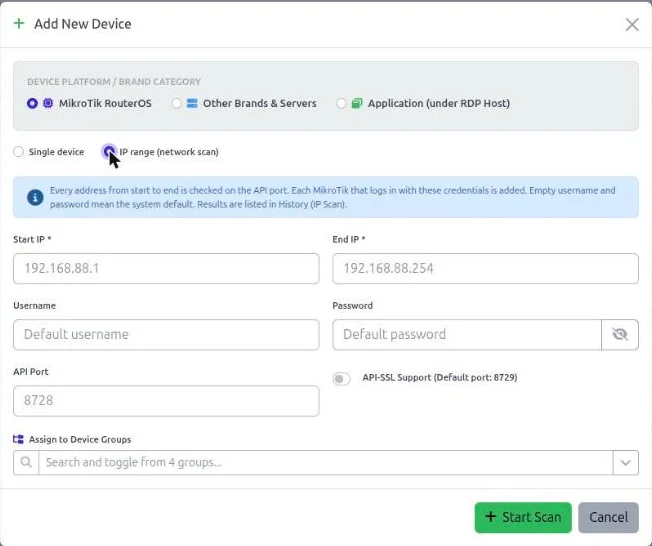
MikroWizard checks every address from start to end on the API port and adds each MikroTik that logs in with these credentials. The scan runs in the background.
See the results #
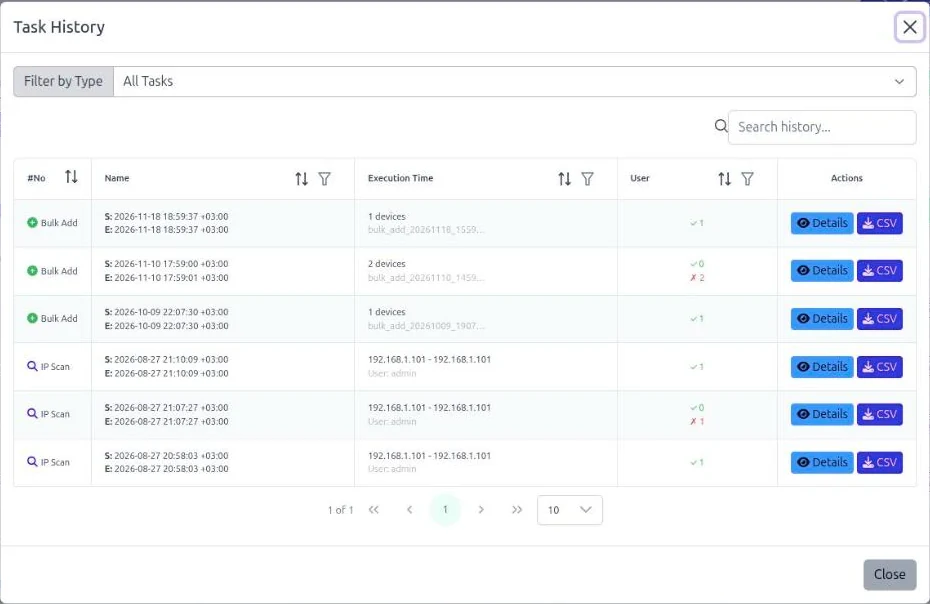
Click History on the device list. Scans are listed as IP Scan with the range, the user and how many routers were added (✓) or failed (✗). Click Details for the list, or CSV to download it.
Tips #
- Keep ranges small (a /24 at a time) on slow links.
- The API service must be enabled on the routers and reachable from MikroWizard.
- Routers already in MikroWizard are not added twice.
How the scan works #
- MikroWizard tries each address in the range, one after another, on the API port. An address that doesn’t answer within a fraction of a second is skipped.
- On each address that answers, it logs in through the API and reads identity, model, RouterOS version, interfaces and addresses.
- The router is added with its identity as the device name. Its peer IP is the MikroWizard address that reached it.
Only one scan runs at a time.
Routers already in MikroWizard #
MikroWizard recognises a router by its MAC address, so the same router is never added twice, even when it answers on several addresses. If a known router is found at a new address, its record is moved to that address, but only when the scan used the same credentials as stored for it. Otherwise the router is left as it is and the result says MAC already registered to device ….
Example #
A new branch office uses 10.20.30.0/24. Scan from 10.20.30.1 to 10.20.30.254 with the branch’s admin user, and pick the group Branch Routers. After the scan, History shows 3 routers added, and the new routers appear in the group.
Common problems #
| Result | Cause and fix |
|---|---|
| Not MikroTik or Device/Api Port not accessible | Nothing answered on the API port: the api service is disabled, a firewall blocks it, or it isn’t a MikroTik. |
| Connection or authentication failed | The port answered but the login failed: wrong user or password, or API-SSL used on a plain API port (or the other way round). |
| The scan is very slow | Large ranges with many silent addresses. Scan the subnets you actually use. |


