
 MikroWizard
Table of Contents
Pro
What it is #
Compare shows what changed between two backups line by line; search finds the backups that contain a setting.
Example uses
- See what changed on a router since yesterday.
- Find every router whose configuration contains an old DNS server.
Pro Included in MikroWizard Pro. See exactly what changed in a configuration, and find every router that has a setting.
Before you start #
- Edition: Pro. Viewing backups is Free; Compare and Config Search are Pro.
- Permission: Backups Read.
Compare two backups #
- Go to Backups. Use Filters to set the date range if the backups are older than 24 hours.
- Click Compare on the first backup and on the second one. The selected backups appear at the top (2 Selected).
- Click Compare at the top.
- Comparing Configurations shows Original (Before) and Modified (After). Choose Side by Side or Unified; Swap changes which one is before.
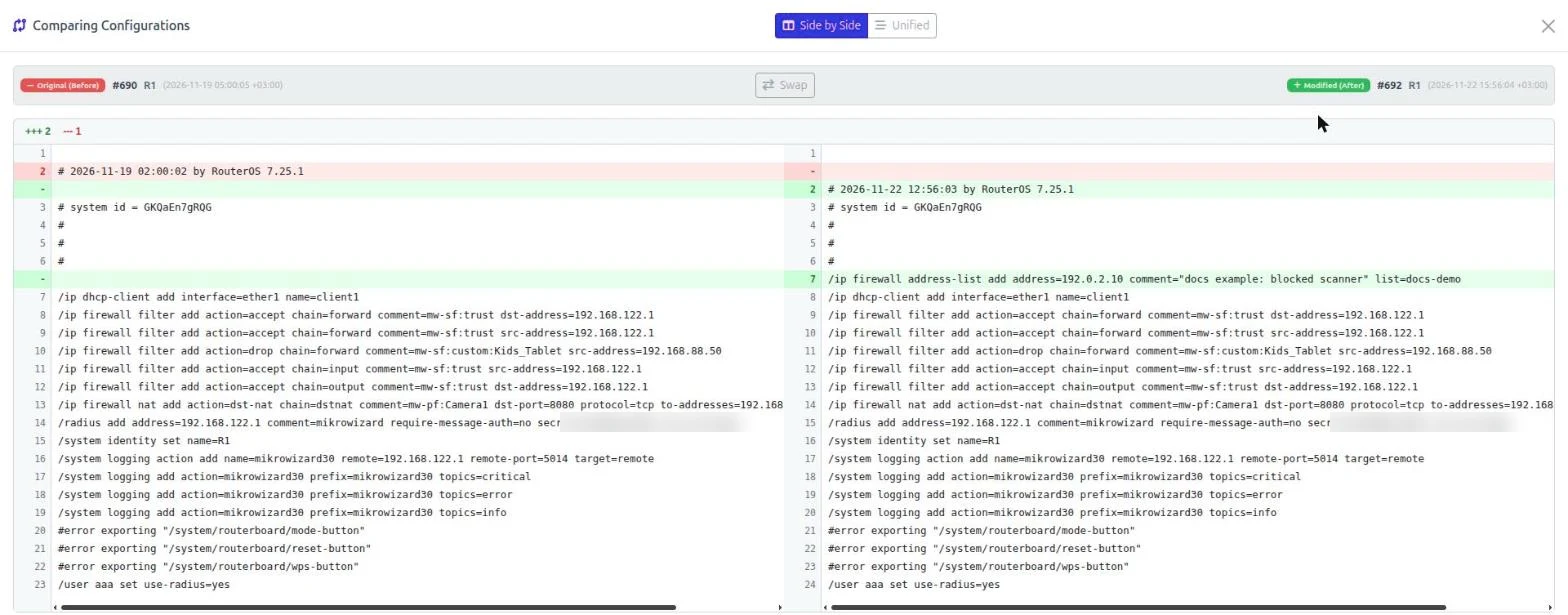
You can compare backups of different devices too, for example two branch routers that should be configured the same.
Search in backups #
Open Filters and type in Config Search. Only backups whose content contains the text are shown. The match is exact and case-sensitive. Combine it with the date range and Source Type.
Examples #
- What changed since last night? Compare the newest backup of the router with the one before it.
- Which routers still use the old DNS server? Config Search
8.8.4.4, date range: the last day. - Before a restore: compare the backup you want to restore with the current one, so you know what you will lose.
Good to know #
- Backups are text exports, so the comparison shows configuration lines, not binary differences.
- For automatic versioning per device, with rules that ignore lines that always change, see Config versions and diff exclusions.


