
 MikroWizard
Table of Contents
Pro
What it is #
Tickets are a simple helpdesk inside MikroWizard: customers open a request for their router, and staff answer from the admin side with the router details at hand.
Example uses
- A client reports an outage at a branch and follows the replies in one place.
- Staff close common requests quickly because the ticket already names the router.
Pro Included in MikroWizard Pro. A simple helpdesk built into MikroWizard.
For customers #
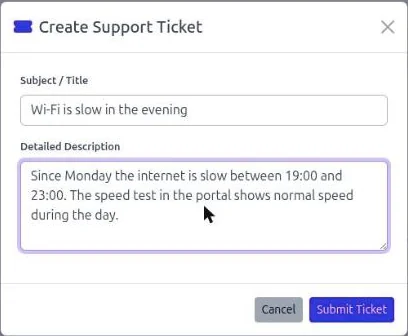
- Go to Support Tickets and click Open New Ticket.
- Enter a Subject / Title and a Detailed Description, then click Submit Ticket.
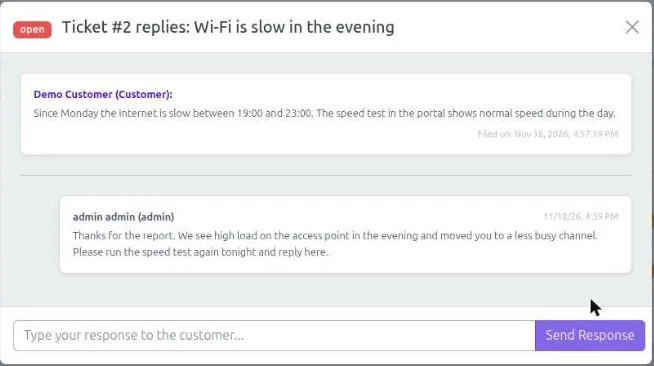
- The ticket appears in the list with its status. Click Chat to read replies and answer.
For staff #
Go to Customer Tickets. Each ticket shows the customer, subject, status, assigned staff and last activity.
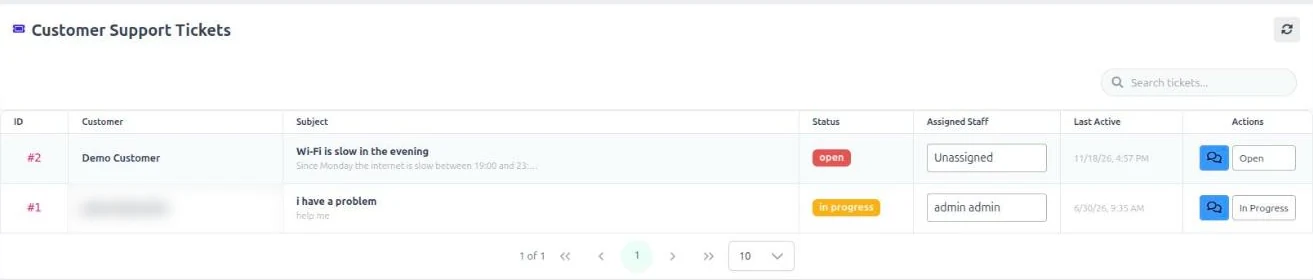
- Assigned Staff: assign the ticket to a team member.
- Status: Open, In Progress, Resolved or Closed.
- Conversation button: read the ticket and reply with Send Response. Sending a reply sets the ticket to In Progress.
Staff need the Customer Tickets permission with write access (see Users & Access Control).
Example #
A customer opens No internet since this morning. A staff member assigns the ticket to themselves, checks the router in MikroWizard, and replies Your line was down because of a fault in your area, it is fixed now. The status changes to In Progress; after the customer confirms, set it to Resolved.


