
 MikroWizard
Table of Contents
Pro MikroTik only
What it is #
Assigning a router links it to a customer and decides, feature by feature, what they may see and change on it. Everything else stays hidden.
Example uses
- Allow Wi-Fi password changes but not firewall rules for a home subscriber.
- Give a business client port forwarding and diagnostics on their two branch routers.
Pro Included in MikroWizard Pro. Decide router by router what each customer can see and change.
Before you start #
- The customer account exists: see Create a customer account.
- The customer’s routers are in MikroWizard: see Add your first device.
Steps #
- Go to Customer Portals. Every customer is listed with their assigned routers.
- Click Grant Access on the customer’s row.
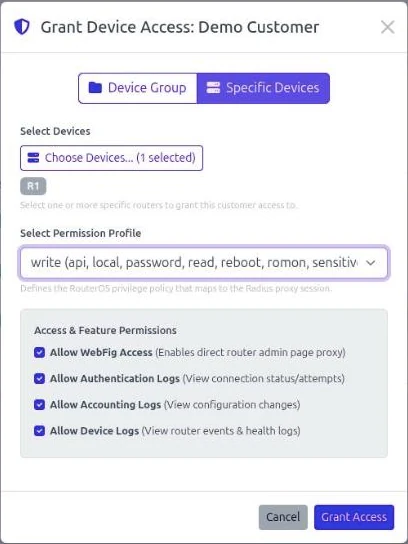
- Choose what to assign: Device Group (every router in a group, useful for a customer with several sites) or Specific Devices (click Choose Devices…, tick the routers and click Confirm Selection).
- Choose a Permission Profile. It sets the RouterOS policies used for the customer’s sessions on the router (for example read or write). Profiles are managed in Permissions.
- Choose the extra features under Access & Feature Permissions:
| Option | Lets the customer |
|---|---|
| Allow WebFig Access | Open the router’s WebFig page from the portal through MikroWizard. |
| Allow Authentication Logs | See logins to their router. |
| Allow Accounting Logs | See configuration changes on their router. |
| Allow Device Logs | See router events and health logs. |
- Click Grant Access.
The assignment appears on the customer’s row with the profile and icons for the enabled features. Use the pencil to edit it, or the × to remove it. A customer can have several assignments.
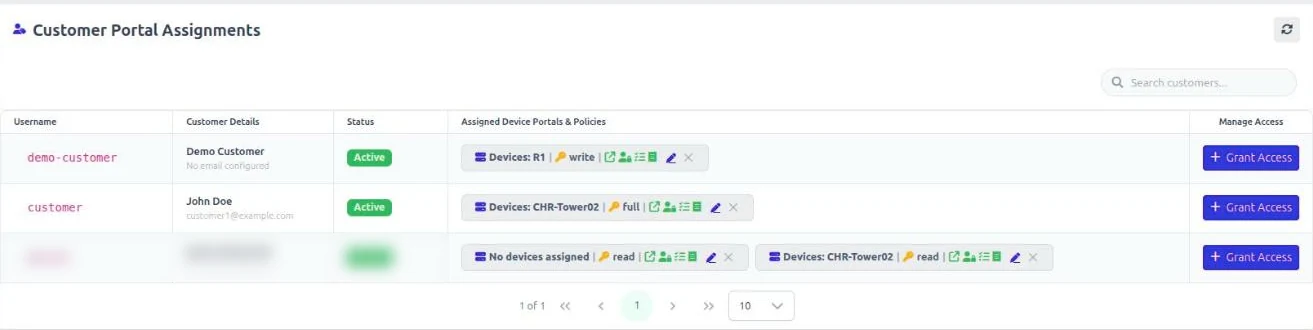
Choose a read profile if the customer should only look. Changing Wi-Fi, port forwarding and firewall rules needs a profile that allows writing.
Example: a business customer with three sites #
Put the customer’s three routers in a group Acme Ltd, then Grant Access with Device Group Acme Ltd, profile write, WebFig and device logs allowed. When a fourth site is added to the group, the customer sees it automatically.
Common problems #
| Problem | Cause and fix |
|---|---|
| The customer sees No Routers Assigned | No assignment yet, or the assigned group is empty. |
| The customer’s changes fail | The profile is read, or RADIUS isn’t set up on the router, so MikroWizard can’t log in as the customer. Turn on Force RADIUS in Security and enforcement switches. |
| The customer sees routers of another customer | They share a group. Assign specific devices, or give each customer their own group. |


