
 MikroWizard
Table of Contents
Pro MikroTik only
What it is #
A customer account is a login for one of your subscribers or clients. It only opens the customer portal and only shows the routers you assign, never the admin menus.
Example uses
- Give a business client a login to check their office router.
- Let a home subscriber manage Wi-Fi and port forwarding without calling support.
Pro Included in MikroWizard Pro. Customer accounts give subscribers access to the customer portal for their own routers.
Steps #
- Go to Users Management and click +.
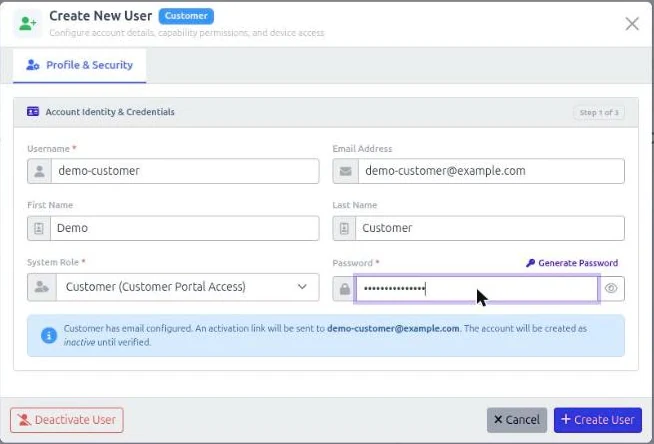
- Fill in Username, optionally Email Address, First Name and Last Name.
- Set System Role to Customer (Customer Portal Access).
- Enter a Password, or click Generate Password.
- Click Create User.
Active or inactive #
| Email address | What happens |
|---|---|
| Filled in | The account is created inactive and an activation link is emailed to the customer. It becomes active when they open the link. Needs Email (SMTP) to be set up. |
| Empty | The account is active straight away. Give the customer their username and password yourself. |
Customers who register themselves on the login page also start inactive (see Customer sign-in, registration and password reset).
The new customer appears in the user list with the role customer. The Customers tab shows only customer accounts.
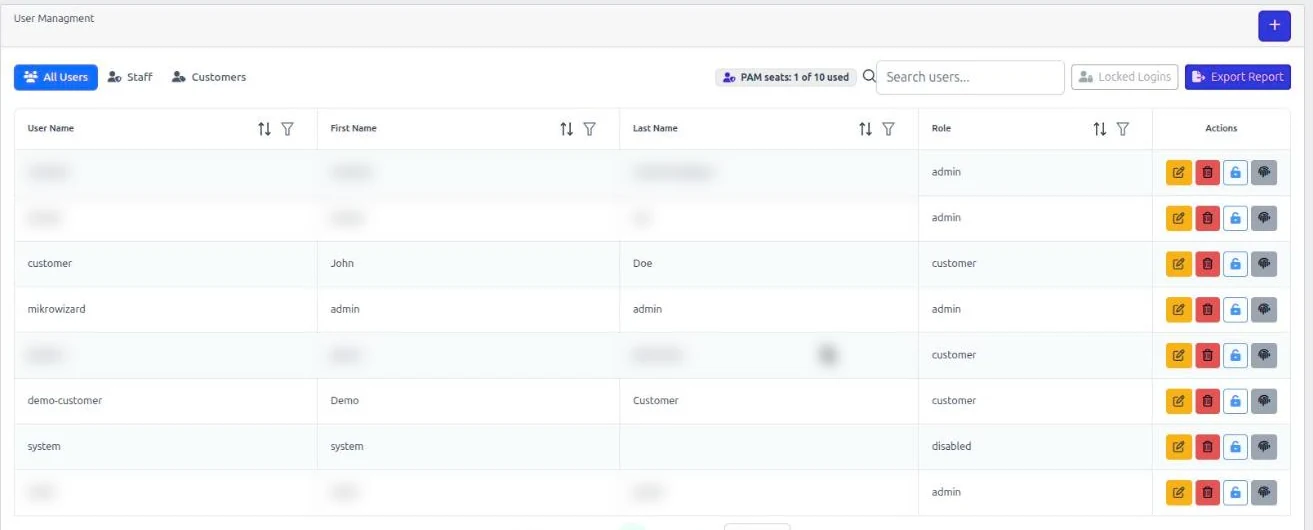
A new customer can’t see any router yet. Continue with Assign routers and permissions.
Disable a customer #
Edit the user and click Deactivate User, or set the role to Disabled. The customer can no longer sign in.


