
 MikroWizard
Browser RDP and VNC are part of MikroWizard Pro 2.1.0 and run on the Terminal Gateway addon v1.3.0 or later. If you haven’t installed or updated the gateway yet, see Installing Terminal Gateway Addon and Updating Terminal Gateway server first.
Add an RDP or VNC host #
- Open Devices and click Add Device.
- Under Connection protocol, choose RDP (Remote Desktop) or VNC.
- Enter the Device Name and IP Address. The port defaults to 3389 for RDP and 5900 for VNC; change it if the host listens elsewhere.
- Choose the Brand / Device Type and a Connection Template (RDP and VNC have their own templates with display and acceleration settings).
- Enter the Username and Password. For RDP you can also set an Active Directory Domain.
- Optionally assign the host to device groups, then save.
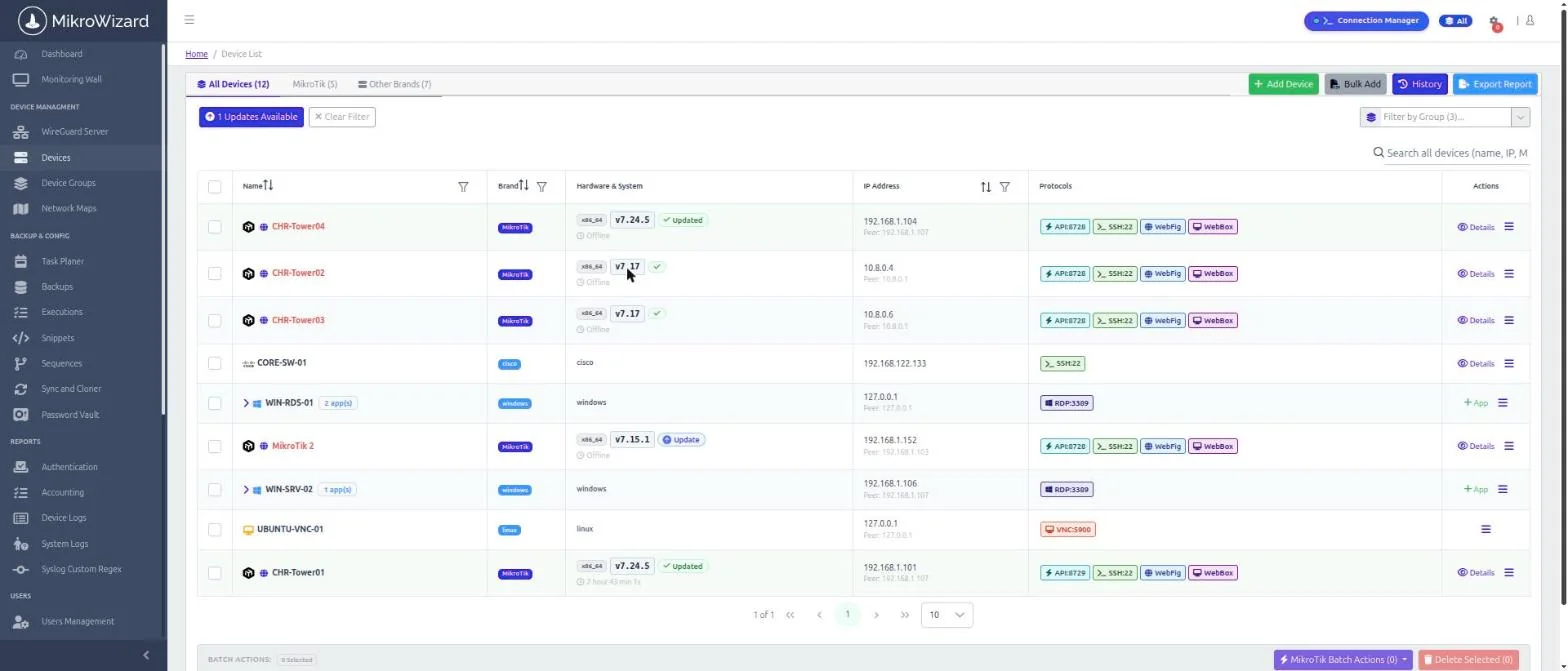
Several hosts can share one public IP on different ports. MikroWizard treats devices as unique by IP and port, and the protocol badge shows the real port, for example RDP:3390.
Open a session in the browser #
Click Connection Manager in the header. RDP hosts are listed under RDP Hosts (Windows) and VNC hosts under VNC Consoles. Double-click a host to open it in a new tab. Sessions run in HTML5, so nothing needs to be installed on your computer.
Publish a RemoteApp #
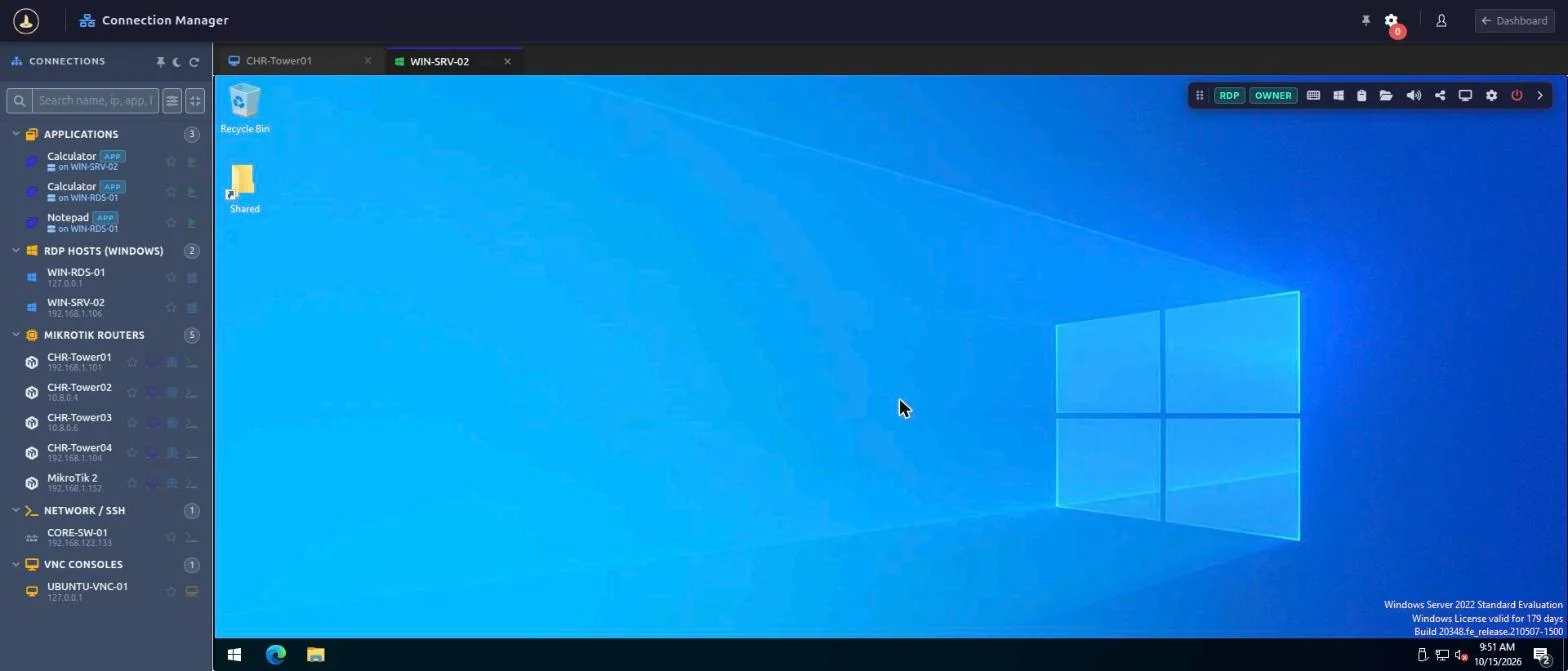
- In Devices, find the RDP host and click + App.
- Enter an Application Name.
- Keep the launch mode RemoteApp (Seamless Window).
- Enter the Application Executable or Alias: an absolute path, or a published RemoteApp alias prefixed with
||. - Optionally add Application Arguments and a Working Directory, then click Publish Application.
Published apps appear under the host in the device list and under Applications in the Connection Manager. They inherit the host’s IP, credentials and security settings.
Control what users can do: session DLP #
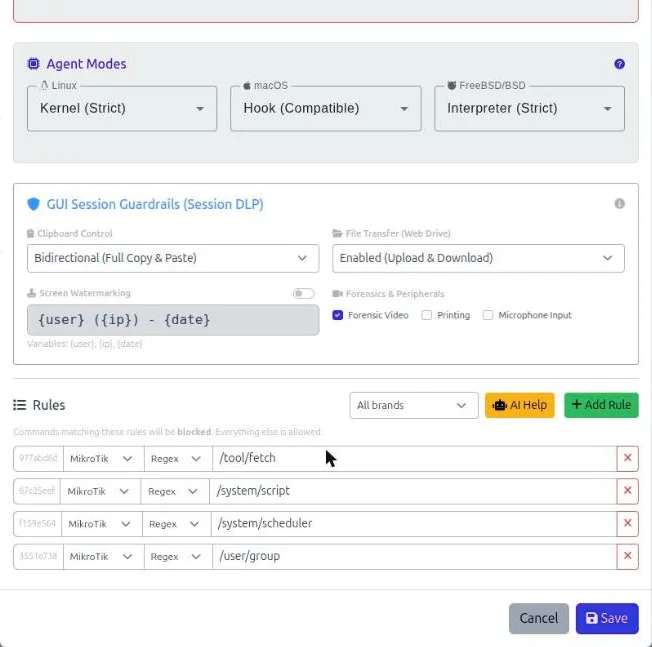
Open Terminal Policies and edit a policy. The GUI Session Guardrails (Session DLP) section controls clipboard direction, file transfer, screen watermarking and forensic recording for graphical sessions. Session options resolve in four tiers: template, then host, then published app, then DLP policy.
Recordings and sharing #
RDP and VNC sessions appear in Active sessions and Session history with a protocol badge. Recordings can be replayed in the browser, and live sessions can be watched or shared like terminal sessions.


